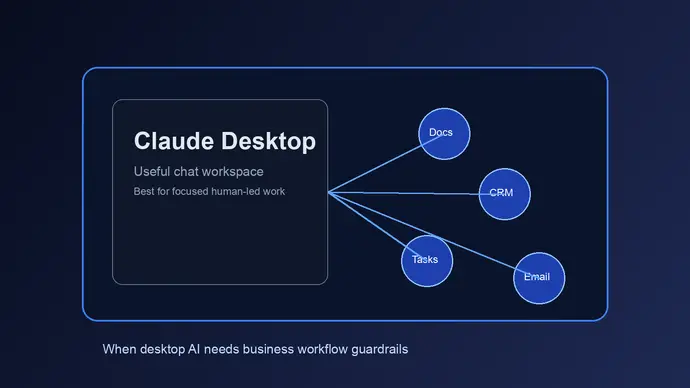
Claude setup looks simple until a team tries to use it for real work. The account is created, a few people start chatting, and then the same problems show up: scattered context, unclear permissions, copied prompts, stale files, and answers that sound confident but miss the way the business actually operates.
That is not a Claude problem by itself. It is usually a setup problem. Claude can be a strong assistant for research, operations, sales, support, and internal documentation, but only when the workspace has clean context, clear boundaries, and a repeatable way to test outputs before people trust them.
For a small business owner or operator, the goal is not to make Claude feel impressive in a demo. The goal is to make it useful on a Tuesday afternoon when someone needs a meeting brief, a customer reply, a follow-up draft, or a clean summary of a messy document thread.
Claude Setup Starts With the Work, Not the Tool
The first mistake is treating Claude setup as a software install. You create the account, invite the team, connect a few apps, and assume the hard part is done. But Claude becomes useful only after you define the jobs it should handle.
Start with five repeatable workflows. Good candidates are inbox triage, meeting preparation, CRM note cleanup, internal knowledge search, and weekly reporting. Each workflow should have an owner, an input, a finished output, and a short rule for when a human must review the result.
This matters because AI assistants fail in boring ways. They use the wrong source. They answer from old context. They summarize the visible document but miss the file that actually controls the decision. A clean setup reduces those misses before people build bad habits around them.
Anthropic’s own documentation for Claude Projects and connectors points in the same direction: Claude works better when it has access to the right project knowledge and approved tools, not a random pile of files. That sounds obvious. In practice, it is where most setups get messy.
Need a cleaner Claude rollout plan?
I can map the workflows, context, and guardrails before your team builds habits around a messy setup.
Claude Setup for Accounts, Projects, and Shared Context
Account structure should match how the team works. A founder, office manager, sales rep, and support lead do not need the same default setup. They need shared standards, but their daily context is different.
Use Projects when a workflow needs persistent instructions and a bounded knowledge base. A sales project might include service descriptions, objection notes, tone examples, and CRM update rules. A support project might include refund rules, escalation language, help docs, and a list of topics Claude should never answer without a human.
The project instructions should be plain. Avoid huge prompt blocks that try to cover every edge case. Better instructions tell Claude what the project is for, what sources to trust first, what output format to use, and what to do when the answer is uncertain.
Here is a useful structure:
- Purpose: what this project helps the team produce.
- Sources: which documents are trusted and which are only background.
- Output: the format Claude should return by default.
- Limits: topics that require review or should be refused.
- Review rule: when a human checks before sending or acting.
That last rule is the one people skip. But without it, Claude quietly shifts from assistant to decision-maker. That is fine for drafting a meeting recap. It is not fine for sending a customer refund decision, editing a contract clause, or changing a live operational workflow without review.
Connectors Should Be Added Slowly
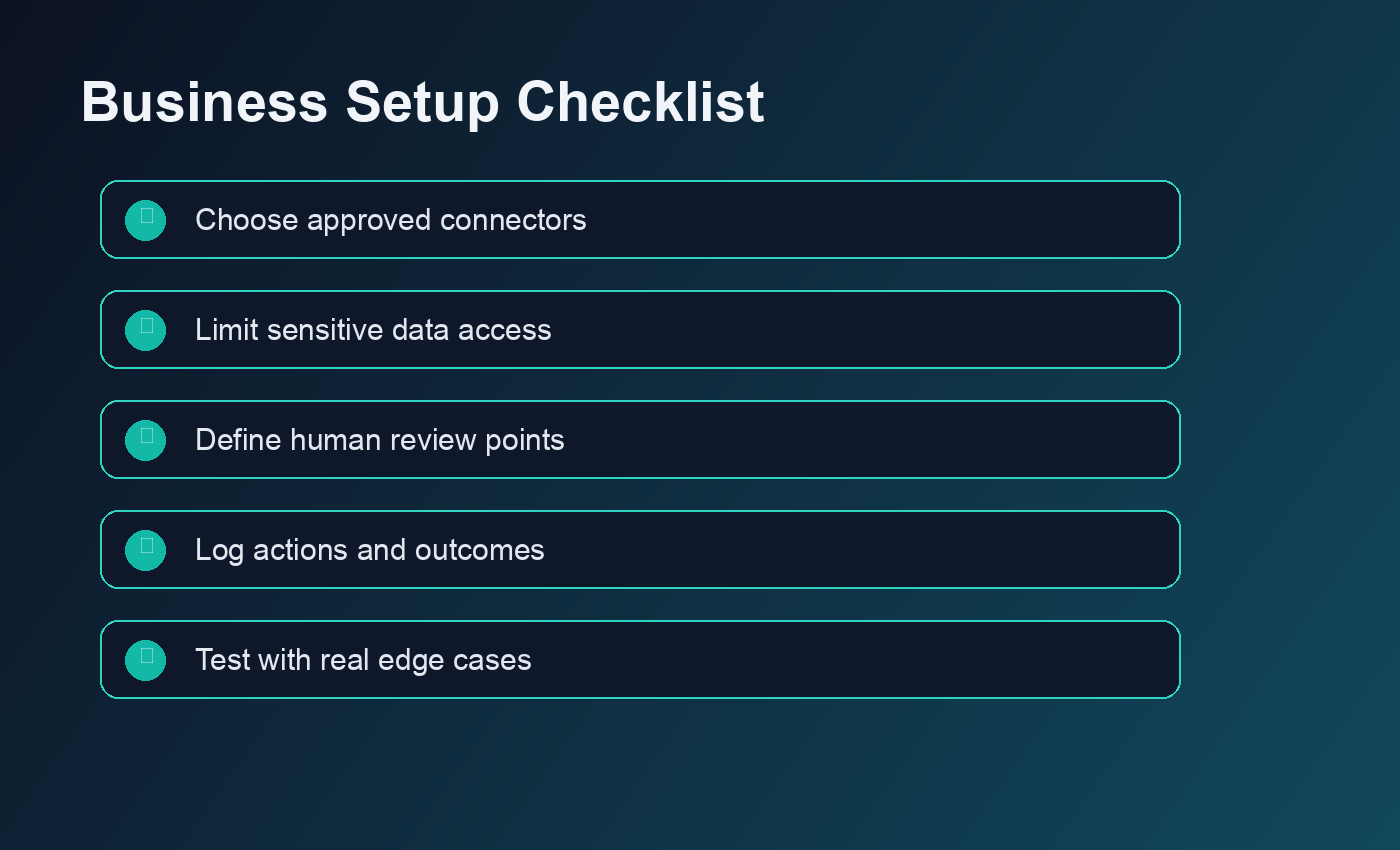
Claude connectors can make the assistant much more useful because they let it work with real business data instead of generic instructions. Anthropic lists first-party and MCP-based connector options for services such as Google Workspace, Microsoft 365, Slack, GitHub, and other workplace tools.
That power cuts both ways. Connecting everything on day one creates more risk than value. The practical path is to connect one system at a time, test the workflow, and document what Claude can access.
Start with read-heavy workflows. For example, let Claude find a relevant policy, summarize a project folder, or prepare a meeting brief from calendar and document context. Delay write actions until the team has seen enough examples to trust the workflow.
Permissions are the part that deserves real attention. A connector should mirror existing business access, and users should understand that Claude can only use data available through the connected account and allowed scopes. Still, a bad access model outside Claude becomes a bad AI access model inside Claude. If too many people can read sensitive folders, Claude setup will expose that weakness faster.
This is where OpenClaw-style automation planning helps. The same thinking behind Claude AI business automation applies here: define the workflow, define the data boundary, test the failure case, then expand.
Claude Setup Needs Guardrails Before Daily Use
Guardrails do not need to be dramatic. Most useful guardrails are simple operating rules that stop avoidable mistakes.
For customer-facing work, require Claude to draft but not send. For finance, legal, medical, tax, hiring, and HR content, require review from the responsible person. For internal knowledge search, tell Claude to name the source document it used and say when the source is missing.
For workflow automation, define the safe actions first. Drafting a Slack update is lower risk than changing a project status. Summarizing a contract is lower risk than rewriting a termination clause. Creating a checklist is lower risk than updating a production database.
I am not fully convinced every small team needs a formal AI policy before using Claude. That can become theater. But every team does need a one-page operating standard that says what Claude may do, what it may not do, and who owns review for sensitive outputs.
If your team already uses OpenClaw, this is also the point where you decide which work belongs in Claude chat and which work belongs in a repeatable agent workflow. Chat is good for thinking, drafting, and one-off analysis. Agent workflows are better for scheduled checks, tool routing, escalation, and work that needs logs. The difference is explained well in Claude AI agents.
Want the guardrails written before rollout?
A setup session can turn vague AI rules into project instructions, review rules, and safe handoffs your team can follow.
A Practical Claude Setup Checklist for Small Teams
Use this checklist before inviting the whole team.
1. Pick the first workflows
Choose work that happens every week and has a clear output. Good examples include meeting prep, inbox summaries, lead research, support drafts, and project status updates. Avoid starting with high-risk decisions or workflows that nobody has documented yet.
2. Create project instructions
Write short instructions for each project. Include the role Claude should play, the sources it should trust, the format it should return, and the review rule. Test the instructions with three real examples before you share the project.
3. Add knowledge in layers
Upload or connect the smallest useful set of documents first. A bloated knowledge base makes answers harder to trust because users cannot tell which source mattered. Start with current policies, current service docs, and current workflow notes. Archive old material or label it clearly.
4. Connect one tool at a time
Connectors should be proven in small steps. Start with one read-only workflow, confirm that permissions behave the way you expect, then decide whether to add another tool. This is slower than connecting the whole stack at once, but it produces fewer surprises.
5. Test bad prompts
Do not only test perfect requests. Ask vague questions. Ask for sensitive actions. Ask Claude to use a missing document. Ask it to draft something that should require approval. A good setup does not only produce good answers. It also fails in a way the team can catch.
6. Keep a simple change log
When you change project instructions, connected tools, or knowledge files, write down what changed and why. This keeps the system explainable. It also saves time when someone says Claude “used to answer this differently” and nobody knows what moved.
Where Claude Setup Usually Breaks
The most common failure is vague ownership. Everyone can use Claude, but nobody owns the setup. Project instructions drift, files go stale, connector access changes, and nobody reviews whether the outputs still match the business.
The second failure is mixing too many jobs into one project. A single “company assistant” project sounds convenient, but it often becomes noisy. Sales context bleeds into support drafts. Operations rules show up in marketing copy. Old documents sit beside current ones with no label.
The third failure is moving to automation too fast. A chat workflow should prove itself before it becomes a scheduled process or tool-using agent. If the team cannot explain the manual version, the automated version will be hard to debug.
For teams already dealing with broken automations, the fixes in OpenClaw setup mistakes are relevant here too. Most failures come from unclear scope, weak permissions, and missing review points.
How to Know Your Claude Setup Is Ready
A ready setup has three signs.
First, users know where to work. They do not ask whether a task belongs in a general chat, a specific project, or a connected workflow.
Second, Claude names its sources when the task depends on business context. If the source is missing, the assistant should say so instead of filling the gap with a confident guess.
Third, sensitive outputs have a review path. Nobody should wonder whether Claude is allowed to send a message, change a workflow, or answer a customer with a policy decision.
That is the real standard. Not fancy prompts. Not a giant tool list. A good Claude setup gives your team a clear place to work, current context, and enough guardrails to make daily use boring in the best possible way.
Set up Claude without the trial-and-error loop
If you want Claude tied into real workflows, I can help design the setup, permissions, and handoffs before the team rolls it out.