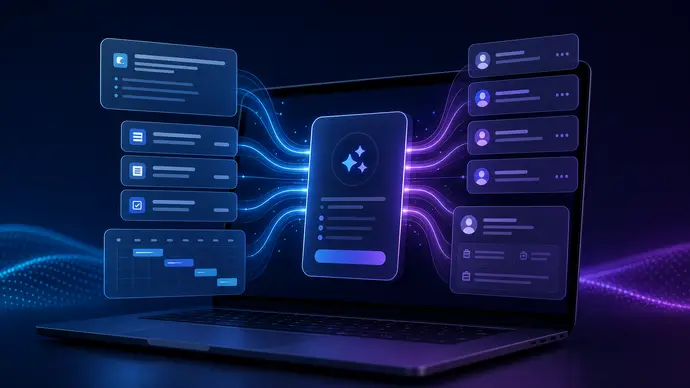
Claude AI integrations are where Claude stops being a smart chat window and starts touching real work. For a business team, the value is not that Claude can summarize a document. The value is that it can read the right workspace data, understand the task, and hand back something useful without five tabs of copy paste.
That sounds simple. It is not. Most messy Claude rollouts come from connecting too much too quickly, giving broad permissions to tools nobody has mapped, or expecting a chat assistant to behave like a production automation system on day one.
This guide is for operators, founders, and small teams that want useful Claude integrations without building a fragile mess. The goal is a practical setup: fewer manual handoffs, clearer permissions, and workflows that can survive normal business chaos.
Claude AI integrations start with the job, not the app list
The wrong way to plan Claude AI integrations is to ask, “What can we connect?” The better question is, “Where does work get stuck because context lives in different places?” That changes the whole setup.
A sales team may need Claude to pull CRM notes, review recent emails, and draft a follow-up. An operations team may need it to search docs, summarize Slack decisions, and create a task in Asana or Linear. A founder may just need clean meeting prep from calendar events, Google Drive files, and internal notes.
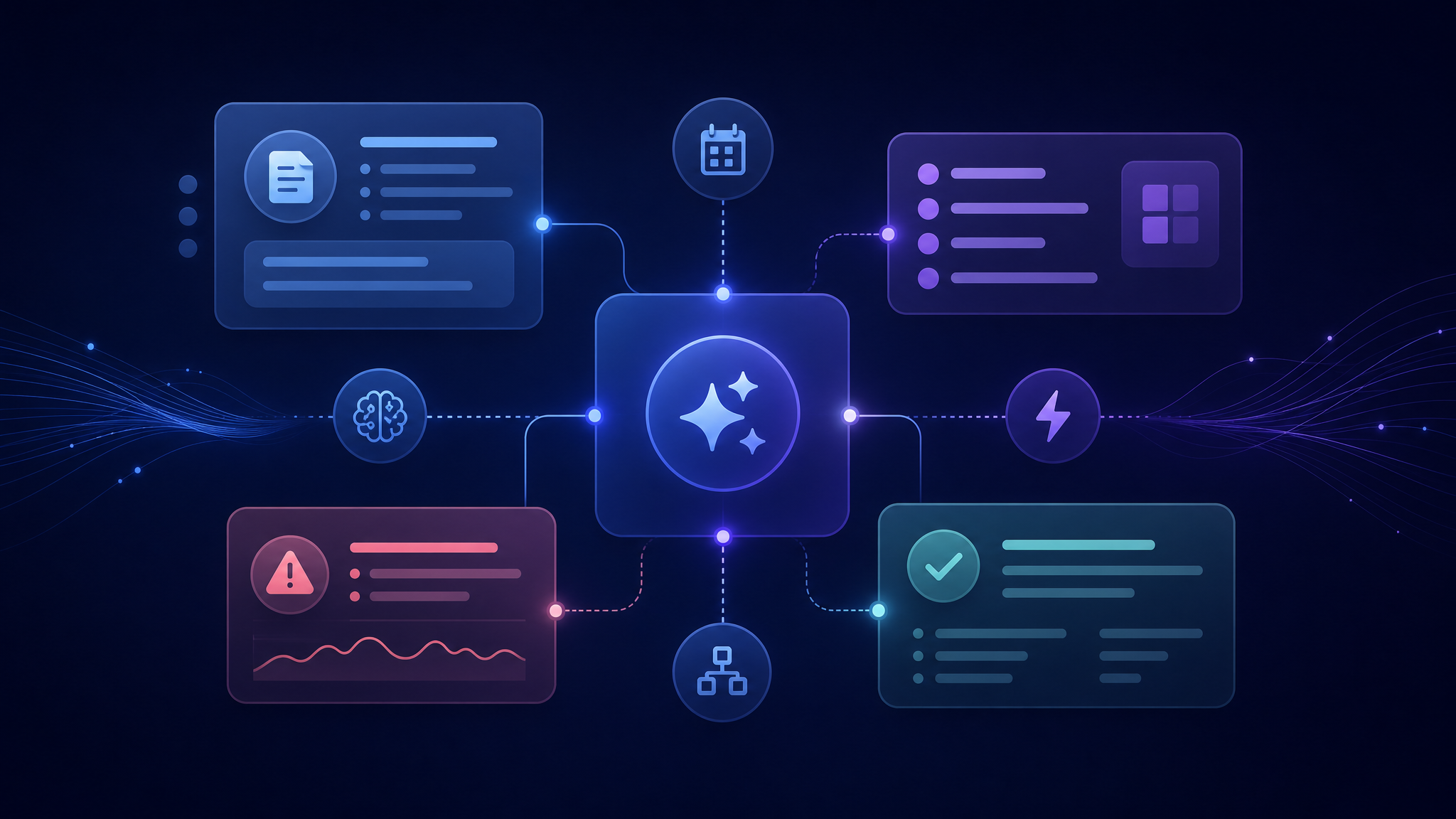
Claude’s connector ecosystem is built around the Model Context Protocol, commonly called MCP. Anthropic describes MCP as a standard way for AI applications to interact with external tools and data. In practical terms, it gives Claude a controlled path into apps like Google Workspace, Slack, GitHub, Linear, and other connected systems when those connectors are available for your plan and workspace.
Want a cleaner Claude integration plan?
Map the workflow first, then connect only the tools that matter.
What Claude integrations can actually do for a team
Claude integrations are strongest when the task has a repeatable input, a clear decision path, and a human review point. They are weaker when the workflow depends on vague judgment, hidden context, or silent background action with no audit trail.
Good first workflows include meeting prep, inbox triage, knowledge base search, support draft generation, GitHub issue summaries, CRM note cleanup, and internal status reports. These are valuable because they reduce switching costs without handing Claude full control over the business.
If your team already uses Google Workspace, Slack, GitHub, or project management tools, Claude can become a better front door for finding and shaping information. That does not mean every action should be fully automated. A draft email is usually safer than a sent email. A proposed issue description is safer than an unreviewed production change.
For related setup work, the Claude Projects for Teams guide explains how to organize shared context before you wire Claude into more systems. If your team is still basic-prompt heavy, read Claude Prompt Management for Teams first. Integrations do not fix sloppy instructions.
Claude AI integrations need permission design
Permissions are the part most teams rush. That is the expensive mistake.
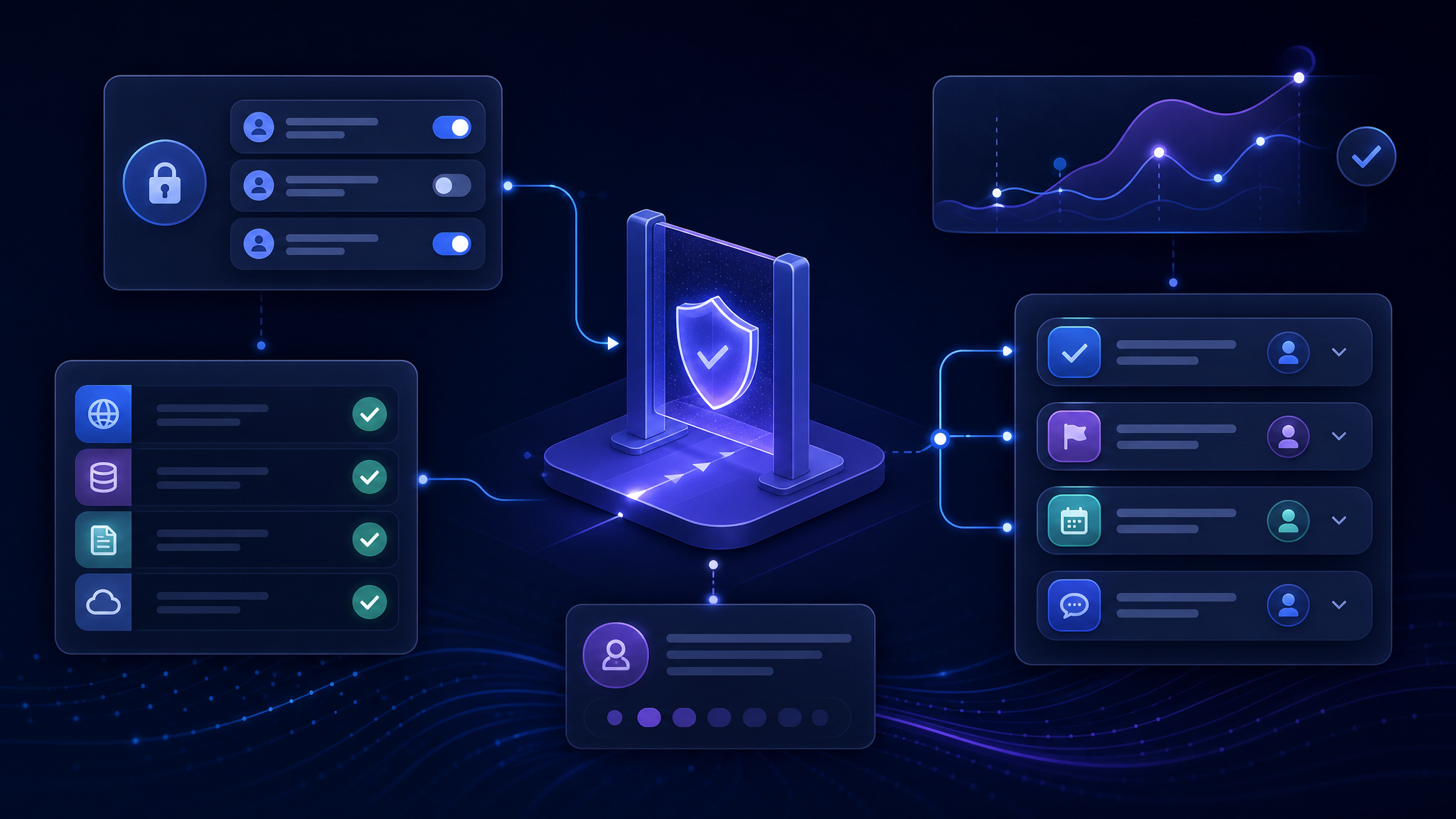
When Claude connects to business tools, it can only work with access that has been granted through the original source and connector. That access model matters. A poorly scoped connector can expose sensitive docs, private customer notes, or internal financial context to workflows that do not need them.
Start with a permissions map. List each connected app, the data Claude can read, the actions Claude can take, who approved the connection, and what logs exist afterward. This does not need to be a legal memo. A simple table is enough for a small team.
For Google Workspace, separate “search and summarize” use cases from “create or edit” use cases. For Slack, decide whether Claude should only search channels or also draft messages. For GitHub, separate code search from issue creation and pull request assistance. The boring distinctions matter because they define the blast radius when something goes wrong.
Where Claude integrations usually break
The first failure is too many tools. Teams connect every shiny app and then wonder why Claude gives inconsistent answers. More context is not always better. Better context is better.
The second failure is vague workflow ownership. If nobody owns the integration, nobody notices when OAuth expires, a connector changes behavior, or a team renames the folder Claude depends on. This is why a basic owner list belongs in the setup.
The third failure is pretending Claude is the whole automation layer. Claude is excellent for reasoning, drafting, summarizing, and tool-assisted work. But if you need scheduled runs, retries, routing, approvals, and durable logs, you need an automation layer around it. That may be OpenClaw, an internal script, or another orchestration tool.
There is also a security nuance here. MCP makes integrations easier to standardize, but any tool standard that can connect apps and take actions deserves careful handling. Treat connectors like software integrations, not browser extensions you casually install because the demo looked good.
Need Claude connected without permission sprawl?
A focused setup beats a pile of disconnected app access.
A practical rollout plan for Claude AI integrations
Pick one workflow with a clear before and after. Do not start with “make the company more productive.” Start with “turn weekly sales calls into CRM notes and next-step drafts” or “summarize priority GitHub issues every Monday morning.”
Then build the minimum connector set for that workflow. A meeting prep workflow might need calendar access, Google Drive search, and a project context doc. A developer handoff workflow might need GitHub, Slack search, and an issue tracker. A support workflow might need the help desk, knowledge base, and a reviewed response draft.
Next, define the human approval point. Claude can draft the follow-up, but a person sends it. Claude can prepare the task, but a manager approves the priority. Claude can summarize the Slack thread, but the owner confirms the decision. This keeps trust high while the team learns where Claude is reliable.
After that, log the workflow. Save the prompt, connected apps, permissions, owner, and expected output. A setup that only exists in someone’s memory will break as soon as the team changes tools or the original builder gets busy.
Use a simple Claude AI integrations scorecard before expanding
Before adding the second or third workflow, score the first one. Did it save time every week? Did the output need light editing or heavy cleanup? Did anyone rely on Claude for a decision it was not supposed to make? Those answers matter more than a polished demo.
A useful scorecard has five fields: workflow owner, connected tools, permission level, review point, and failure mode. The failure mode is the part people skip. Write down what happens if Claude cannot reach a file, misunderstands a Slack thread, or drafts the wrong next step. A good setup does not assume the integration works perfectly every time.
For small teams, I would rather see one boring workflow that runs cleanly for a month than six impressive workflows that nobody trusts. That may sound conservative, but it is usually the fastest route to adoption. People use automation when it removes work without making them nervous.
Review the scorecard after real use, not after a test prompt. The first week will expose missing folders, unclear channel rules, and prompts that sounded better in planning than they work in production. Fix those before adding another connector.
How OpenClaw fits around Claude integrations
Claude can be the reasoning layer. OpenClaw can be the operations layer around it.
That matters when the workflow needs routing, scheduled checks, memory, channel-specific outputs, background jobs, or a clean approval path. For example, Claude may draft a customer update, while OpenClaw handles when the job runs, where the draft is stored, which channel gets the alert, and what happens if the first step fails.
This is also where setup quality shows up. A small business does not need a huge automation stack to get value from Claude AI integrations. It does need clean boundaries: what Claude reads, what Claude drafts, what OpenClaw triggers, and what a human approves.
If you are connecting Claude into team communication, the OpenClaw Slack Integration guide is a useful companion. For development teams, the OpenClaw GitHub Integration guide shows how to keep engineering workflows practical instead of noisy.
Claude integrations are worth it when the workflow is specific
The teams that get the most from Claude integrations are not the ones with the longest connector list. They are the ones that know exactly which handoff they are trying to remove.
Start small. Connect the minimum set of tools. Keep permissions narrow. Add a human checkpoint. Write down how the setup works. Then expand only after the first workflow saves real time without creating new cleanup work.
That is not as exciting as a giant app dashboard. But it is how useful automation gets built.
Build the first Claude workflow the right way
Get a practical integration plan for the tools your team already uses.