Want this set up for your business?
OpenClaw Microsoft Outlook integration work sounds simple until the first messy inbox hits the system. The goal is not to make Outlook noisier. The goal is to turn email and calendar activity into clean decisions: route this, summarize that, create the task, prepare the follow-up, and leave sensitive actions behind a review step.
Outlook is usually where business operations get stuck. Customer requests sit beside vendor notices. Calendar invites bury context in threads. Someone forwards an email to Slack, then someone else copies part of it into a task tool, then nobody knows which system is current. A useful automation setup should reduce that handwork without pretending every message deserves the same treatment.
This guide breaks down how to think about Outlook automation with OpenClaw: inbox triage, calendar workflows, Microsoft Graph permissions, webhook reliability, and the setup mistakes that create more work than they remove.
Why OpenClaw Microsoft Outlook integration needs a workflow plan first
The first mistake is connecting Outlook before deciding what the integration is allowed to do. An inbox is not a normal data source. It contains contracts, passwords people should not have sent, HR issues, invoices, complaints, and half-finished thoughts. If the automation can read everything and act everywhere, you have a security problem disguised as productivity.
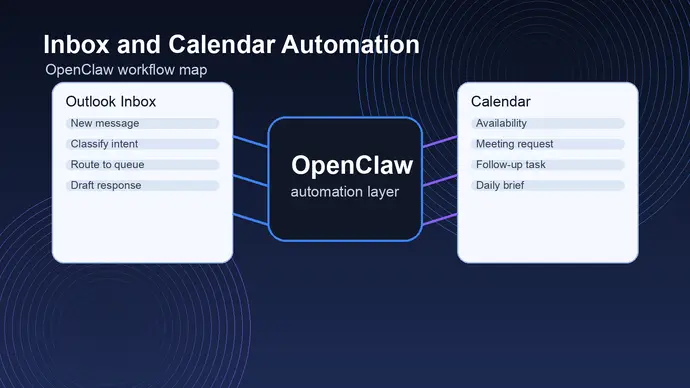
A better starting point is a workflow map. Pick the few inbox events that have a clear operational outcome. For example:
- A new customer support email should be classified, summarized, and routed to the right queue.
- A sales reply should update the CRM or create a follow-up reminder.
- A meeting invite should pull thread context into a prep note.
- An invoice email should create a review task, not auto-approve payment.
That last distinction matters. Good automation does not remove judgment from risky decisions. It removes the copy-paste work around those decisions.
Need a cleaner Outlook automation plan?
OpenClaw Ready can help map inbox and calendar workflows before you connect sensitive mailbox data.
What Microsoft Graph can actually support
Most modern Outlook automation runs through Microsoft Graph. Microsoft documents support for subscriptions on Outlook messages, events, and contacts. Those subscriptions can notify an application when resources are created, updated, or deleted, which means an automation layer can respond to new mail or calendar changes without constantly polling the mailbox.
There are useful limits to know before designing the system. Microsoft states that Outlook resources have a maximum of 1,000 active subscriptions per mailbox across all applications. That sounds high, but sloppy designs can burn through subscriptions by creating one watcher for every narrow folder, user, or scenario. The cleaner pattern is to subscribe only where the business case is clear, then classify inside the workflow.
Microsoft also notes that creating and managing a subscription requires read permission for the resource. Mail change notifications need mail read permission. Calendar event notifications need calendar read permission. If a setup needs shared or delegated mailbox folders, Microsoft recommends the corresponding application permission for subscribing to items in another user’s mailbox or folder. The Outlook sharing permissions are not the same thing for change notification subscriptions.
That is where many Outlook automations get brittle. The builder tests with one signed-in user, it works, then it fails when the company expects the same workflow across a shared support inbox or another employee’s calendar. The permissions model was wrong from the start.
For related setup patterns, the same planning logic applies to OpenClaw Microsoft Teams integration when notifications need to move from inbox events into team channels.
OpenClaw Microsoft Outlook integration for inbox triage
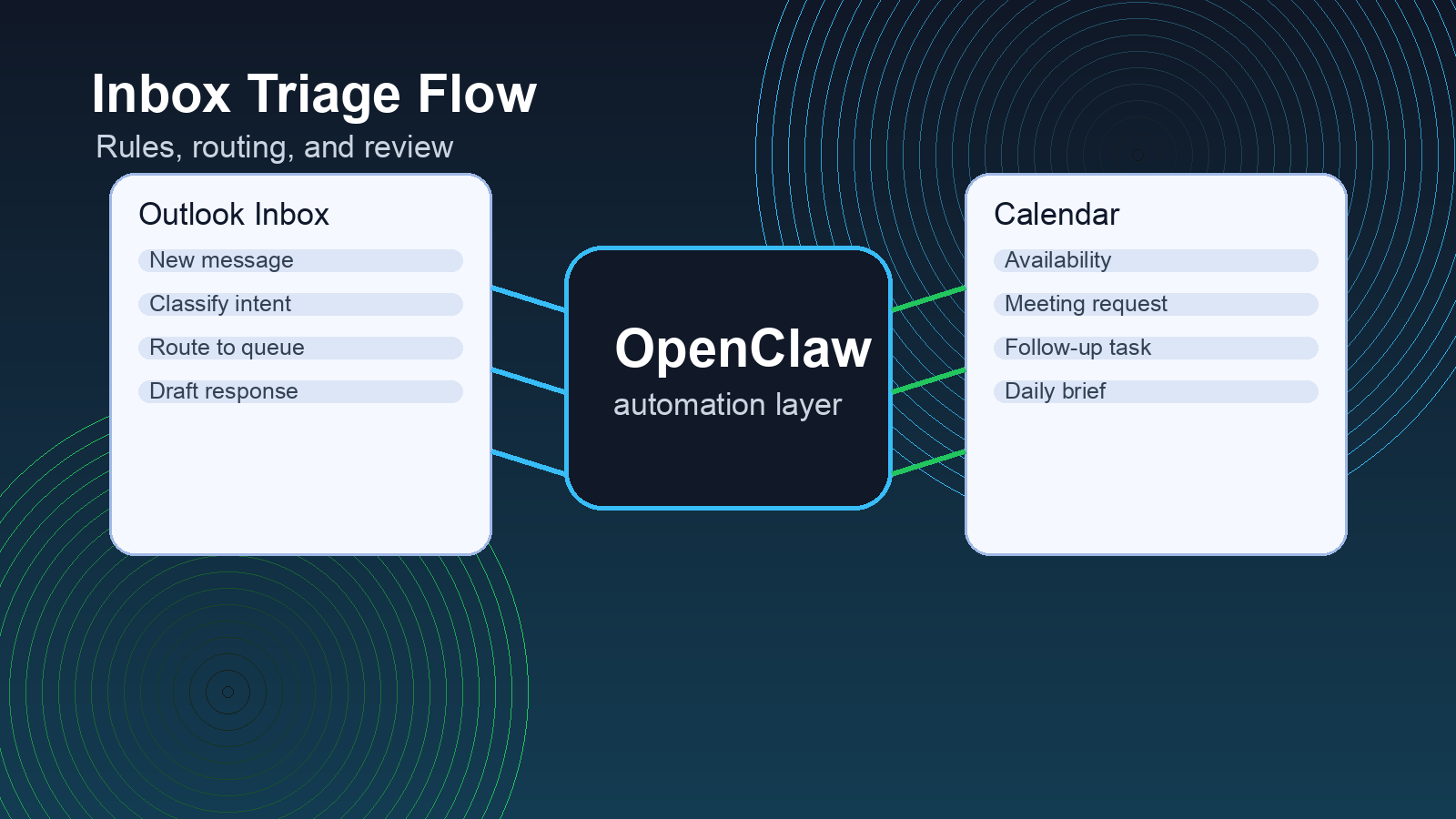
Inbox triage is usually the strongest first use case because the pain is obvious. People waste time deciding what an email is before they can decide what to do with it. OpenClaw can sit between Outlook and the rest of the operating stack so each message gets turned into a structured action.
A practical triage flow looks like this:
- Watch the right mailbox or folder for new messages.
- Pull only the fields needed for routing, such as sender, subject, timestamp, thread context, and selected body text.
- Classify the message by intent, urgency, account, or department.
- Create the next step in the right system.
- Log what happened so a human can audit the result.
The boring parts are where the quality comes from. Subject lines lie. Email bodies include signatures, legal disclaimers, quoted replies, and forwarded junk. A good setup strips noise before classification and preserves enough context for a human reviewer to understand the action.
There is also a judgment call on auto-replies. For low-risk acknowledgments, automation can draft or send a response. For anything involving refunds, legal issues, hiring, or private account data, draft-only is safer. I would rather have a human approve 20 important replies than let one bad automatic reply create a client problem.
If the routed action lands in a task system, compare the Outlook workflow with the patterns in OpenClaw ClickUp integration or OpenClaw Jira integration. Email triage works best when the destination system has clean owners, statuses, and escalation rules.
Calendar workflows that are worth automating
Calendar automation should be more careful than inbox automation because meetings touch real people’s time. The best workflows support the meeting process instead of trying to run it blindly.
Useful calendar workflows include meeting prep briefs, agenda reminders, follow-up task creation, and conflict alerts. Microsoft Graph calendar APIs can work with events, reminders, recurring meetings, categories, and event updates. Microsoft also describes change tracking for calendar events and subscriptions for notifications when event data changes.
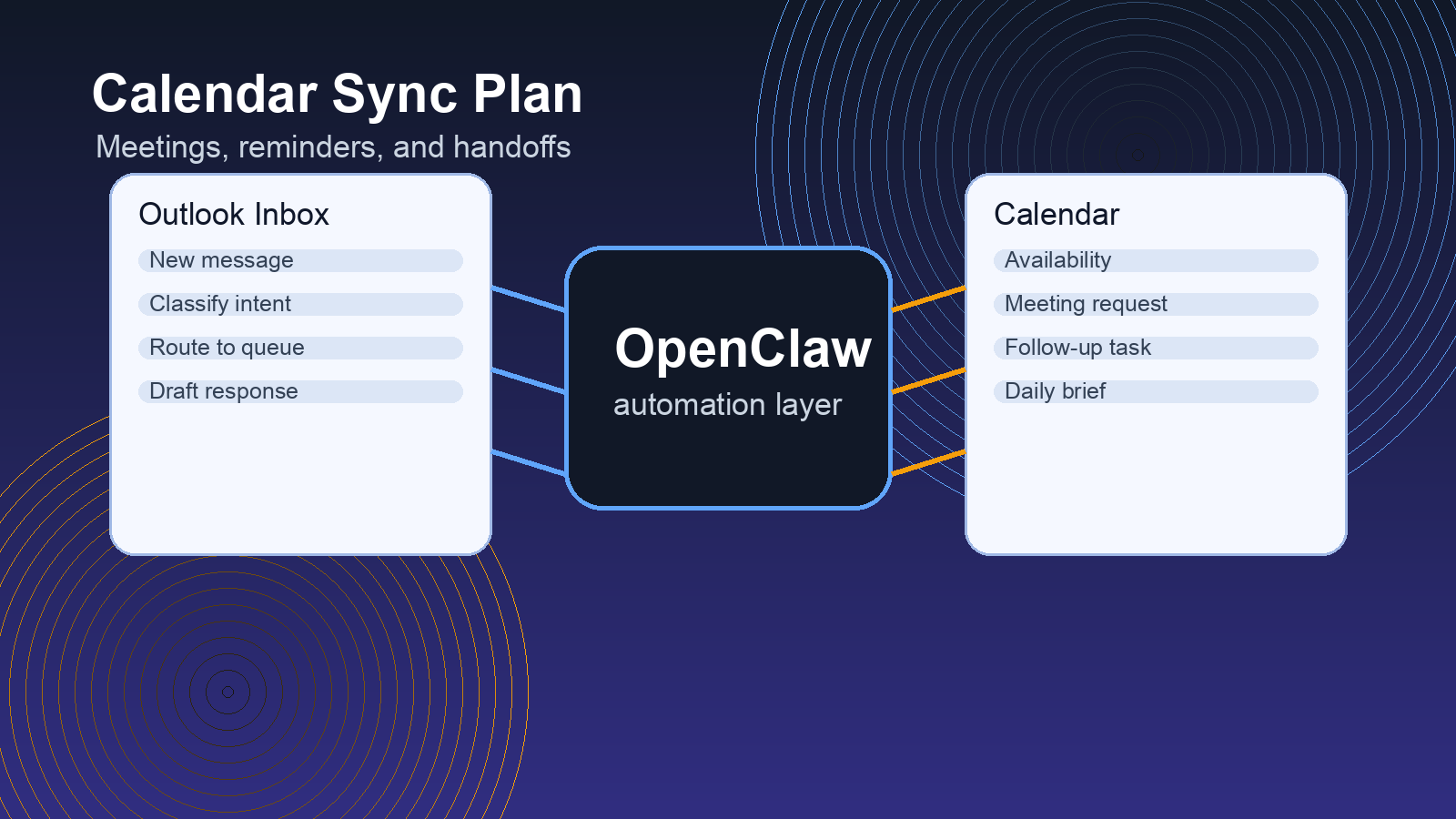
A good OpenClaw calendar workflow might watch for new external meetings, find related email context, summarize the last interaction, and create a prep note. After the meeting, it can draft follow-up tasks based on notes or call output. That gives the operator a cleaner day without letting automation reschedule people or send commitments without review.
Recurring meetings need special handling. A single recurring series can create many event instances, and updates can apply to the series or one occurrence. If the workflow treats every update as a brand-new meeting, the team gets duplicate tasks and noisy reminders. The setup should identify the event, series, organizer, attendees, and changed fields before creating downstream actions.
Make Outlook useful without making it chaotic
Get help building review-safe workflows for inbox routing, calendar prep, and follow-up automation.
Security and permissions for OpenClaw Microsoft Outlook integration
Microsoft’s permission guidance is clear on one principle: request the least privileged permissions the app needs. That sounds obvious, but Outlook integrations often drift toward broad access because broad access is easier during setup.
For a small team workflow, delegated permissions may be enough if the automation only acts for the signed-in user. For company-wide workflows, shared inboxes, or background processing, application permissions may be needed. That choice should be made intentionally, documented, and approved by the Microsoft 365 administrator.
Use a short permission checklist before connecting anything:
- Which mailbox, folder, or calendar does OpenClaw need to read?
- Does it need read-only access, or does it need to create drafts, events, or tasks?
- Which actions should require human review?
- Where will logs be stored?
- Who can revoke or rotate the connection?
For webhook-based workflows, build renewal and failure handling into the plan. Microsoft Graph subscriptions have expiration times, and Microsoft documents lifecycle notifications such as reauthorizationRequired, subscriptionRemoved, and missed. If those signals are ignored, the workflow can silently stop watching the mailbox. That is worse than no automation because the team thinks the system is working.
Setup mistakes to avoid before launch
The biggest Outlook integration mistake is trying to automate the whole inbox on day one. Start narrow. Pick one workflow with a clear owner and a measurable before-and-after process.
A second mistake is skipping exception handling. Some messages will be ambiguous. Some calendar invites will change three times. Some senders will use the wrong thread. The workflow needs a fallback queue for uncertain items instead of forcing every event through a confident-looking but wrong action.
A third mistake is hiding the automation from the people who rely on it. Operators should be able to see why a message was routed, what data was used, and what action was taken. If the system is a black box, people stop trusting it the first time it makes a strange call.
Before launch, run a small test set with real but non-sensitive examples. Check the classification, destination task, owner, summary quality, and audit log. Then expand. It is slower than flipping every switch at once, but it is much less expensive than cleaning up a broken mailbox workflow later.
Final checklist for a reliable Outlook setup
A strong OpenClaw Microsoft Outlook integration should answer these questions before it goes live:
- What exact Outlook events trigger automation?
- Which Microsoft Graph permissions are required, and why?
- Which messages or meetings require human approval?
- How are subscriptions renewed and monitored?
- Where do failed or uncertain items go?
- How does the team audit actions after the fact?
Once those answers are clear, Outlook becomes a better source of operational signal. Not perfect. Email will always be messy. But with the right guardrails, OpenClaw can turn inbox and calendar activity into cleaner handoffs without giving automation more authority than it should have.
Want Outlook connected the right way?
OpenClaw Ready can help design and set up a practical Outlook workflow with clean permissions and review steps.
{
“@context”: “https://schema.org”,
“@type”: “Article”,
“headline”: “OpenClaw Microsoft Outlook Integration: Manage Inbox and Calendar Workflows Without Manual Triage”,
“author”: { “@type”: “Organization”, “name”: “OpenClaw Ready” },
“publisher”: { “@type”: “Organization”, “name”: “OpenClaw Ready”, “logo”: { “@type”: “ImageObject”, “url”: “https://openclawready.com/wp-content/uploads/2026/02/openclawready-logo.png” } },
“datePublished”: “2026-05-15T10:15:00+00:00”,
“dateModified”: “2026-05-15T10:15:00+00:00”,
“mainEntityOfPage”: { “@type”: “WebPage”, “@id”: “https://openclawready.com/blog/openclaw-microsoft-outlook-integration/” },
“url”: “https://openclawready.com/blog/openclaw-microsoft-outlook-integration/”,
“description”: “OpenClaw Microsoft Outlook integration guide for cleaner inbox triage, calendar workflows, permissions, and setup mistakes.”,
“image”: “https://openclawready.com/wp-content/uploads/2026/05/openclaw-outlook-integration-hero.png”
}