Want this set up for your business?
An openclaw microsoft teams integration sounds simple until every alert, approval, and AI update lands in the same Microsoft Teams channel. Then the tool that was supposed to reduce work becomes one more place people mute.
The fix is not more notifications. The fix is a routing model. Teams should get the right OpenClaw message, in the right place, with enough context for someone to act.
This guide walks through a practical setup for small teams that already live in Microsoft Teams and want OpenClaw to handle requests, reminders, summaries, and status updates without creating channel noise.
OpenClaw Microsoft Teams integration starts with channel design
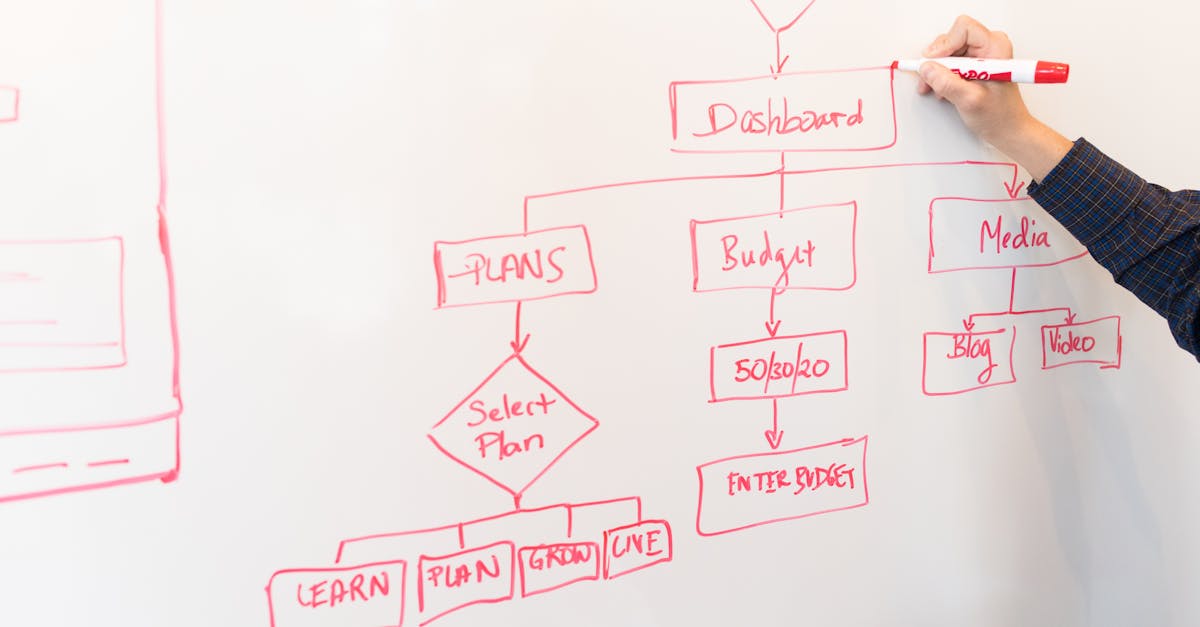
Do not start by asking, “Can OpenClaw post into Teams?” It can, through several paths. Start with the messier question: “Where should each type of work appear?”
Most Teams workspaces already have too many channels. If OpenClaw posts every update into a general channel, people will ignore it within a week. If every workflow gets its own channel, nobody knows where to look.
A better first pass is to divide messages by job type:
- Requests: new tasks, intake forms, approvals, and handoffs that need a human response.
- Updates: workflow status, completed jobs, missed checks, and daily summaries.
- Exceptions: failed automations, blocked tasks, security-sensitive alerts, or anything that needs quick review.
That map matters more than the technical connector. Teams is already where people talk. OpenClaw should make that conversation easier to act on, not louder.
Want Teams routing without a messy rollout?
OpenClaw Ready can help map your channels, handoffs, and notification rules before anything goes live.
OpenClaw Microsoft Teams integration options: webhook, workflow, bot, or Graph API
There is no single best connection method. The right path depends on how interactive the workflow needs to be.
For basic one-way updates, Microsoft’s current guidance points teams toward the Teams Workflows app for incoming webhook-style posts. Microsoft’s documentation says the Workflows app can receive HTTP requests through a webhook URL and then post a card into a chat or channel. That is usually the simplest way to send OpenClaw status updates into Teams.
There is one catch. Microsoft 365 Connectors are being retired, and new connector creation is being phased out. If you are copying an old tutorial that uses legacy Office 365 connectors, pause before you build around it. Use the Workflows app path unless you have a specific reason not to.
For conversational use cases, a Teams bot is cleaner. Microsoft describes Teams bots as apps that interact with users through text conversations, either by following rules or using AI to process natural language. That matters when you want a user to ask OpenClaw for a status check, submit a request, or choose an option inside Teams.
For deeper Microsoft 365 operations, Microsoft Graph is the heavier option. Graph can support team and channel automation, app deployment, messages, meetings, and related Microsoft 365 data. It is powerful. But it also adds permission review, app registration, scopes, and more governance work.
So the short version is this:
- Use Teams Workflows for simple inbound OpenClaw notifications.
- Use a Teams bot when users need to talk back.
- Use Microsoft Graph when OpenClaw needs structured access across Teams or Microsoft 365.
That choice is where many setups go wrong. A webhook is fine for “job finished.” It is weak for “approve this exception and write the answer back to the source system.”
Build the Teams routing rules before you automate
A clean OpenClaw setup needs routing rules that a normal team member can understand. If the logic lives only in one person’s head, the integration will break the first time the team changes roles.
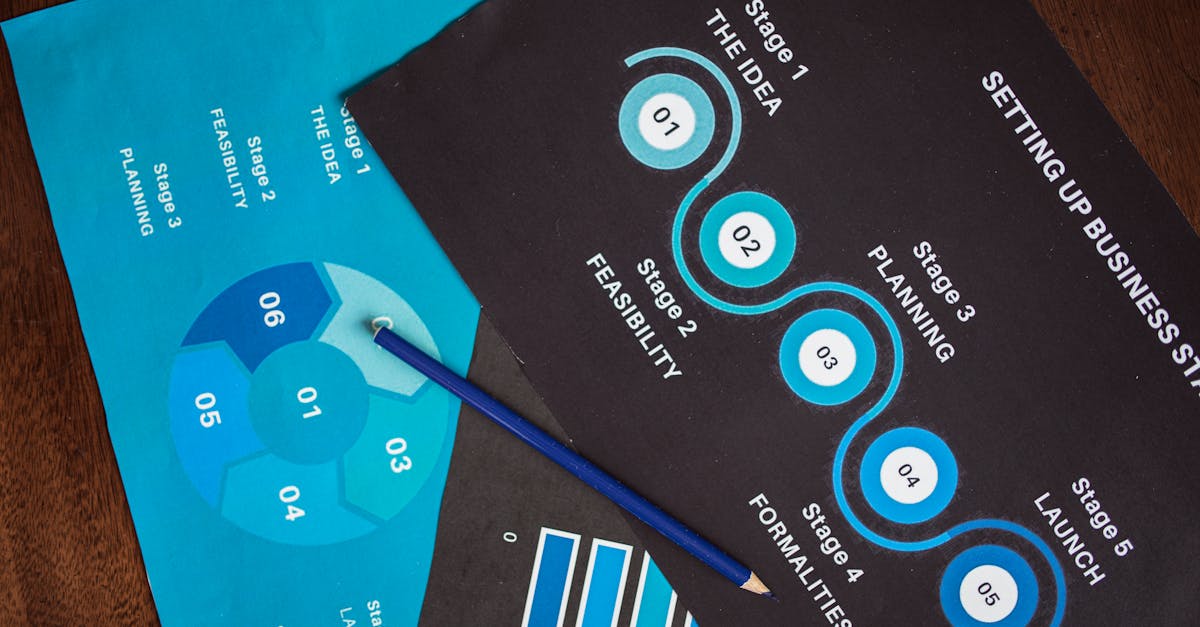
Use a simple table before touching credentials:
- Trigger: What event starts the workflow?
- Destination: Which Teams channel, chat, or bot thread receives it?
- Owner: Who is expected to respond?
- Fallback: What happens if nobody responds?
- Log: Where does the final result get recorded?
For example, a customer support team might send refund exceptions to a private operations channel, daily ticket summaries to a public support channel, and failed automation alerts to an admin-only channel. The same OpenClaw assistant can handle all three, but each message needs a different tone, urgency level, and next step.
This is also where internal links across your OpenClaw setup matter. If Teams is only one part of the system, connect it to the rest of your stack on purpose. The OpenClaw Slack integration guide is useful if you are comparing chat-based routing models. The OpenClaw webhook setup guide goes deeper on trigger design. And if tasks need to become tracked work, the OpenClaw ClickUp integration guide explains the handoff from message to task.
Turn Teams into an action layer, not another inbox.
A clean setup keeps OpenClaw updates useful, traceable, and easy for the team to trust.
What should an OpenClaw Teams message include?
The message format decides whether Teams becomes useful or noisy. A vague “automation complete” post does not help anyone. A clean card with context, status, owner, and next action does.
For most business workflows, each message should include:
- Short title: what happened in plain language.
- Source: where OpenClaw got the request or event.
- Status: new, waiting, complete, failed, or needs review.
- Next action: what the human should do, if anything.
- Link back: the CRM record, ticket, document, or task that owns the work.
Keep the copy blunt. Teams users are usually scanning between meetings. They do not need a paragraph when a sentence and a link will do.
For exception alerts, add one more field: why this matters. “Invoice check failed” is easy to ignore. “Invoice check failed because vendor name did not match the approved vendor list” gives someone a reason to open it.
Common setup mistakes that make Teams automation fail
The first mistake is over-posting. If every internal event becomes a Teams message, the important ones disappear. Send summaries for normal activity and alerts for exceptions.
The second mistake is treating Teams as the system of record. It usually should not be. Teams is the action surface. The durable record should still live in your CRM, task manager, ticketing tool, spreadsheet, or database.
The third mistake is skipping ownership. Microsoft notes that Teams Workflows are linked to specific workflow owners, and workflows can become orphaned when an owner is absent unless co-owners are added. That is not a small detail. If one employee owns the whole automation and leaves, your alert system can quietly decay.
The fourth mistake is ignoring permission boundaries. A Microsoft Graph build may need app permissions, delegated permissions, tenant approval, or admin review. That can be exactly the right path for a larger organization, but it is overbuilt for a simple “post daily summary to channel” workflow.
There is some nuance here. I would rather see a small team start with a boring one-way workflow that everyone understands than a more advanced bot that nobody trusts yet. You can always add interactivity later.
A practical rollout plan for OpenClaw and Microsoft Teams
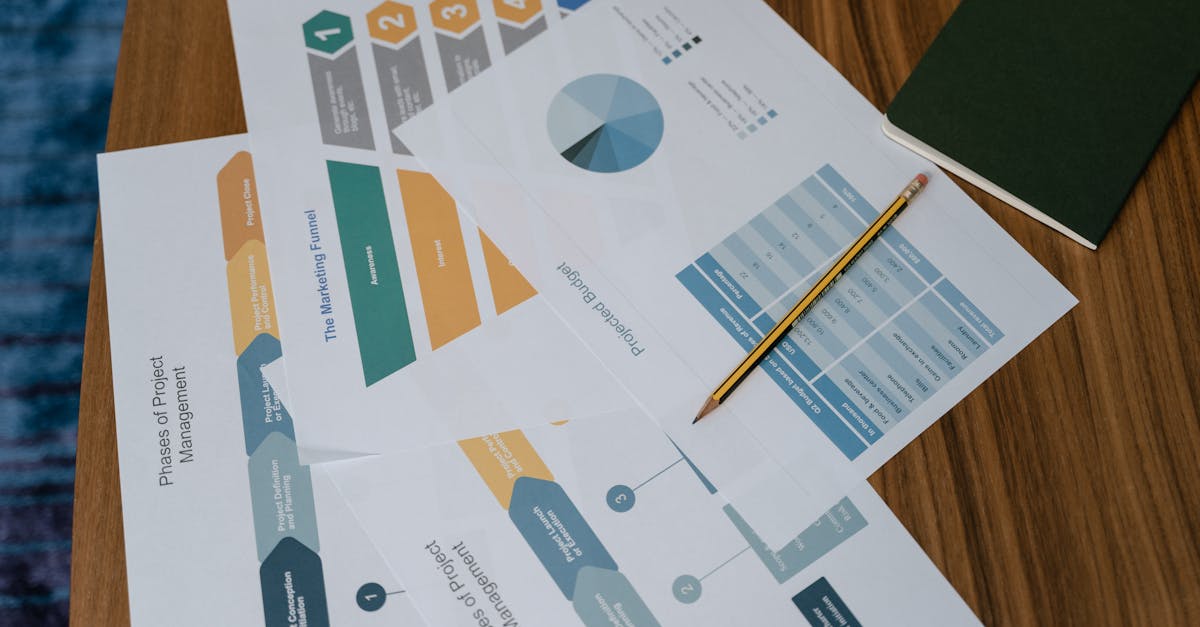
Start with one workflow. Pick something frequent enough to matter but safe enough to test without risking customer trust.
A good first workflow is a daily operations summary. OpenClaw can collect the day’s completed tasks, blocked items, and follow-ups, then post one concise update into a team channel. Nobody has to change behavior immediately, but the team starts seeing OpenClaw as a useful source of operational context.
Once that works, add exception routing. Failed checks, missing inputs, overdue approvals, and stale handoffs should go to a smaller channel with a clear owner. This is where Teams starts saving real time because the right person sees the issue before it becomes a meeting topic.
Then add request intake. A bot or workflow can collect structured requests from Teams and pass them into OpenClaw. Keep the first version narrow. “Create a support follow-up task” is better than “handle every operational request.”
Before launch, test these pieces:
- Does the message land in the right channel?
- Does the right person know they own it?
- Does the link open the source record?
- Does the fallback work when nobody responds?
- Does the workflow still run if the original owner is out?
If the answer is no, fix the rule before adding another automation.
When to get help with an OpenClaw Microsoft Teams integration
You can DIY a simple notification workflow. If all you need is a daily summary or a basic alert, Teams Workflows plus a clean OpenClaw prompt may be enough.
Get help when the workflow crosses systems, needs approvals, touches private data, or requires a bot that users can interact with. Those builds need better planning because the failure mode is not just “message did not post.” It can be duplicate work, missed exceptions, or sensitive context landing in the wrong channel.
A good setup partner should not start by selling a complicated architecture. They should ask where work starts, who owns each decision, where the final record belongs, and which Teams channels already matter to the business.
That is the real goal of an openclaw microsoft teams integration: fewer missed handoffs, cleaner visibility, and less manual chasing inside the tool your team already uses.
Need a Teams integration plan that will hold up?
OpenClaw Ready can build the first workflow, document the rules, and leave your team with a setup they can maintain.
{“@context”: “https://schema.org”, “@type”: “Article”, “headline”: “OpenClaw Microsoft Teams Integration: Route Requests and Updates Without Channel Chaos”, “author”: {“@type”: “Organization”, “name”: “OpenClaw Ready”}, “publisher”: {“@type”: “Organization”, “name”: “OpenClaw Ready”, “logo”: {“@type”: “ImageObject”, “url”: “https://openclawready.com/wp-content/uploads/2026/01/cropped-openclawready-logo.png”}}, “datePublished”: “2026-05-10T10:15:00+00:00”, “dateModified”: “2026-05-10T10:15:00+00:00”, “mainEntityOfPage”: {“@type”: “WebPage”, “@id”: “https://openclawready.com/blog/openclaw-microsoft-teams-integration/”}, “url”: “https://openclawready.com/blog/openclaw-microsoft-teams-integration/”, “description”: “OpenClaw Microsoft Teams integration guide for routing requests, approvals, and updates into the right Teams channels.”, “image”: “https://openclawready.com/wp-content/uploads/2026/05/pexels-photo-1181311.jpeg”}