Want this set up for your business?
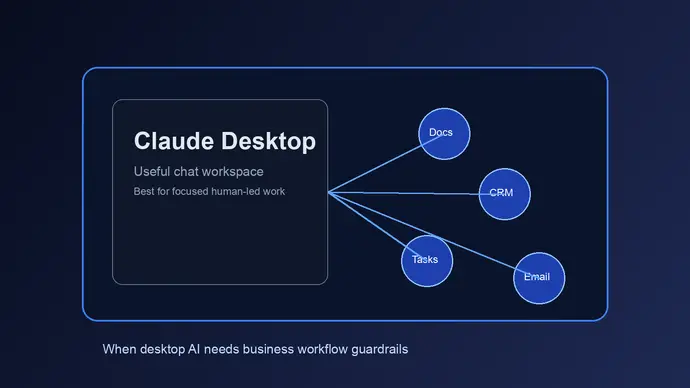
Claude Desktop for business is useful when your team needs a smarter workspace for writing, analysis, planning, and document review. It is less useful when the job requires repeatable automation across tools, scheduled follow-up, shared approvals, or clean logs that a manager can audit later.
That distinction matters. A lot of businesses start with Claude Desktop because it feels simple. Open the app, paste the context, ask a better question, and get a better answer. But the moment the workflow touches customer data, task routing, CRM updates, internal knowledge, or recurring operations, the setup needs more structure than a chat window can provide.
This guide breaks down where Claude Desktop fits, where it starts to strain, and how to decide whether your team needs a broader OpenClaw-style workflow around it.
Claude Desktop for business works best as a focused human-led workspace
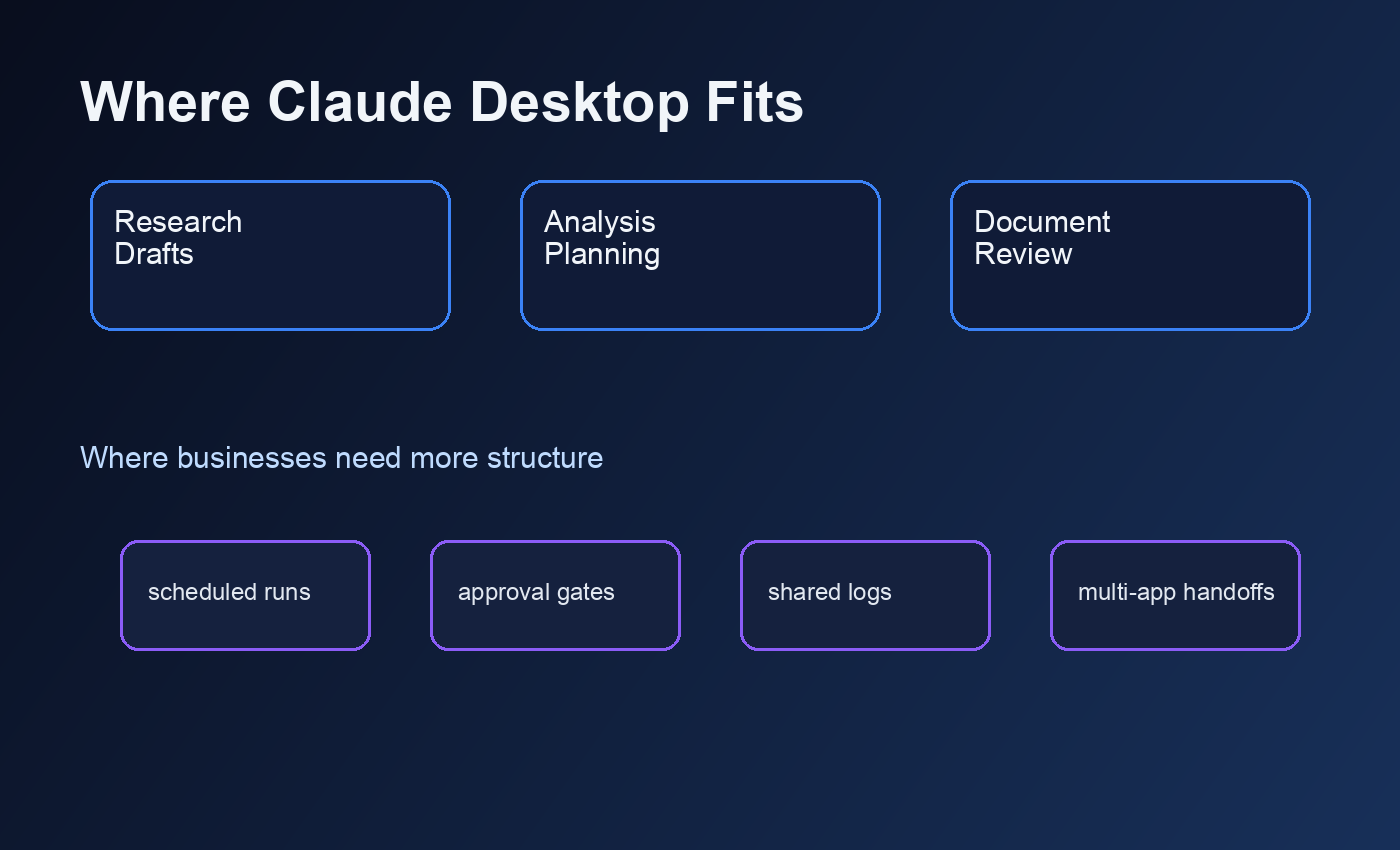
The cleanest business use case is individual productivity. Claude Desktop is strong for work where a person stays in control and uses AI to move faster. Think proposal drafts, meeting prep, policy summaries, customer email rewrites, spreadsheet interpretation, research synthesis, and internal documentation cleanup.
It also works well when the source material is already in front of the user. If a manager has a transcript, a contract, a support thread, or a messy planning doc, Claude can help turn it into something clear. The value is immediate because the user is still choosing the input, checking the output, and deciding what happens next.
That is a good starting point for most teams. It lowers the barrier to AI adoption without forcing the business to rebuild its operations around a new system.
Want Claude workflows set up without guessing?
OpenClaw Ready helps turn scattered AI ideas into working business systems with safer handoffs.
Where Claude Desktop for business starts to break down
The weak point is not usually Claude itself. The weak point is the surrounding workflow.
A desktop chat app does not automatically know which lead needs follow-up, which support ticket should be escalated, which Slack message should become a task, or which report should run every Friday morning. A user can ask for those things one at a time, but that is still manual work wearing an AI costume.
Businesses usually feel the friction in a few places:
- Repeated copy paste. Staff move information between email, docs, CRM records, tickets, and chat.
- No shared operating standard. Each person prompts Claude differently, so outputs vary across the team.
- Weak handoffs. Claude can suggest the next step, but the business still needs a system to assign it, track it, and confirm it happened.
- Limited audit trail. If an AI-assisted action affects a customer or a deadline, someone needs to know what happened and why.
- Hard-to-scale context. A good one-off prompt does not automatically become a reusable process.
This is where a tool like OpenClaw becomes relevant. The goal is not to replace Claude Desktop. The goal is to wrap AI work in a repeatable workflow so the business gets consistent outcomes instead of isolated chats.
Claude Desktop for business and MCP connectors
Anthropic’s Model Context Protocol, usually called MCP, is one of the reasons Claude Desktop is more interesting for businesses than a basic chatbot. MCP lets Claude connect to external tools, data sources, and local servers through a standard protocol.
Anthropic’s own support docs describe desktop extensions as a simpler way to install and manage local MCP servers through single-click packages. Team and Enterprise owners can also manage which desktop extensions are available to members. That matters because unmanaged connectors can create messy access patterns fast.
In practical terms, MCP can help Claude reach useful business context instead of relying only on pasted text. A team might connect approved internal docs, a task system, a database, or a custom tool. But this is also where setup quality becomes important. The wrong connector with the wrong permissions can expose more data than the workflow needs.
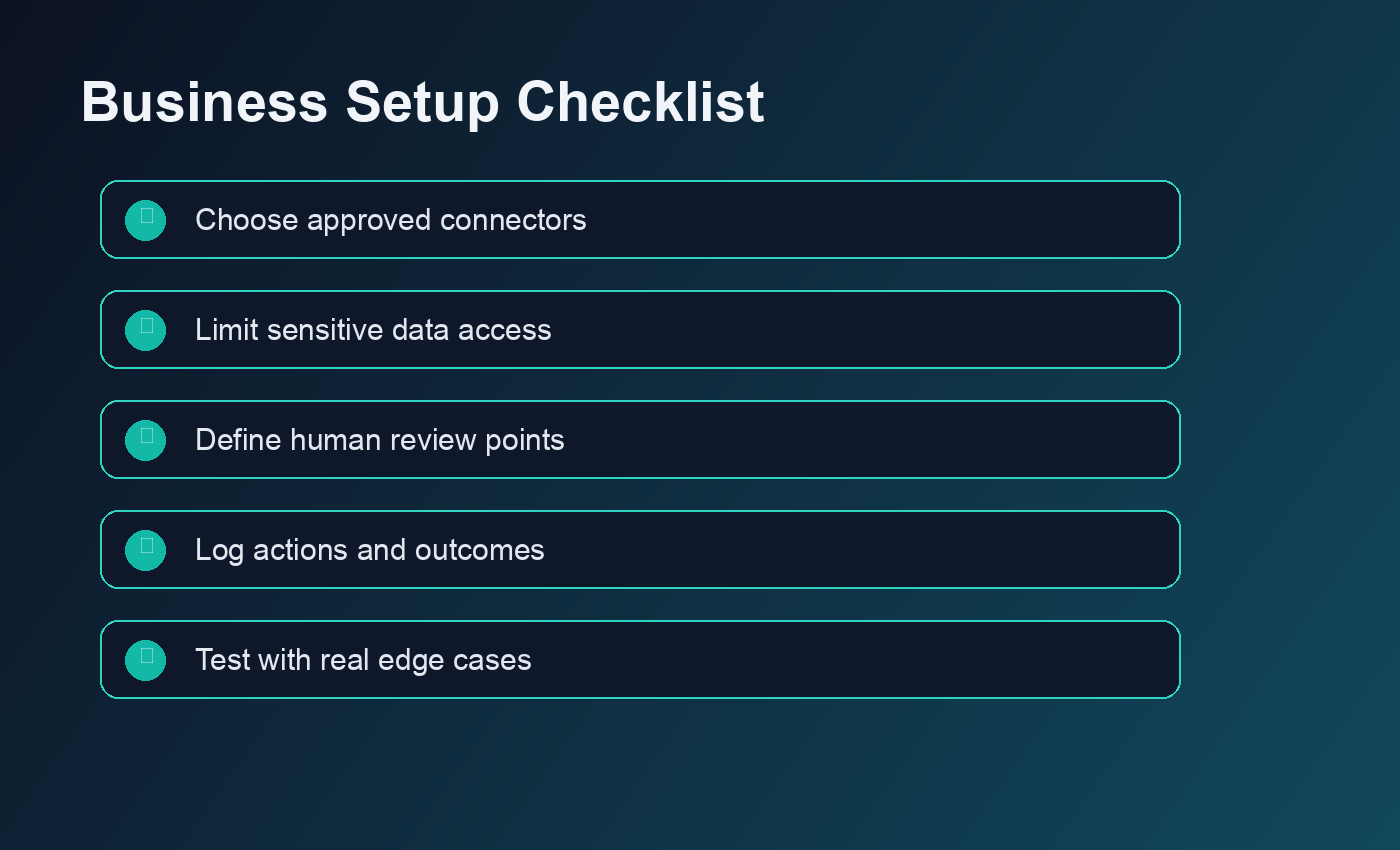
The safer approach is boring but effective: start with one business process, map the exact data Claude needs, approve only those connectors, and test with realistic edge cases before giving the workflow to the team.
When Claude Desktop is enough
Claude Desktop is enough when the work is personal, low-risk, and controlled by a human. If the user can read the output before anything changes in the business, a desktop setup may be perfectly fine.
Good examples include:
- Summarizing long documents for internal review
- Drafting outbound emails that a human sends manually
- Turning meeting notes into a cleaner decision log
- Creating first drafts of SOPs or training material
- Comparing options before a team makes a decision
There is a nuance here. Some teams overbuild too early. They want automated routing, custom agents, knowledge bases, approvals, and scheduled tasks before they have proven the basic workflow. That can waste time. If your team has not even agreed on what a good output looks like, start in Claude Desktop first.
But once the same prompt gets used every week, or once the output needs to trigger action in another system, you should start thinking beyond desktop chat.
Turn repeat prompts into actual workflows
If your team keeps doing the same AI task by hand, it may be ready for a cleaner OpenClaw setup.
When your team needs workflow automation instead
A business needs workflow automation when the AI task has to happen reliably without someone babysitting every step.
Common signs include scheduled work, multi-step handoffs, customer-facing responses, CRM updates, intake triage, recurring reports, and tasks that need approval before execution. At that point, the system needs more than a good prompt. It needs roles, triggers, permissions, logs, and fallback behavior.
For example, a sales team might use Claude Desktop to rewrite follow-up emails. That is fine. But if the real goal is to detect stale leads, draft a relevant follow-up, route it to the account owner, and log the result in the CRM, desktop chat is only one piece of the process.
The same pattern shows up in operations. Claude can summarize a meeting, but the business still needs a way to assign action items, notify owners, and check whether tasks were completed. OpenClaw-style workflows are built for that middle layer between AI output and business execution.
For related setup thinking, read the OpenClaw setup checklist and the guide to Claude AI business automation. Both are useful if you are moving from personal AI use into team workflows.
A practical setup path for Claude Desktop for business
The best rollout is usually small and specific.
1. Pick one workflow with clear friction
Do not start with “AI for the whole company.” Start with one annoying process. A weekly report. A meeting follow-up. A support triage step. A content review flow. The narrower the workflow, the easier it is to test.
2. Define what Claude should and should not do
Claude might summarize, draft, classify, compare, or suggest. It should not silently take risky business actions unless the workflow has explicit approval rules. Write those boundaries down before connectors get added.
3. Choose approved data sources
If the workflow needs docs, tasks, tickets, or customer data, decide which source is authoritative. Avoid connecting everything just because it is technically possible.
4. Build a reusable prompt or agent instruction
A good business workflow should not depend on one employee remembering the perfect prompt. Standardize the instruction, expected format, review rule, and handoff path.
5. Add automation only after the manual version works
Run the workflow manually inside Claude Desktop first. Once the output is reliable, move the repeatable parts into OpenClaw or another automation layer.
Common mistakes to avoid
The biggest mistake is treating Claude Desktop like a full operations system. It is a strong interface for thinking and drafting, but it does not automatically create process discipline.
Another mistake is giving AI access before the workflow is clear. If your team cannot explain the desired input, output, owner, approval step, and failure mode, a connector will not fix the problem. It will just make the confusion move faster.
Teams also skip documentation. That is painful later. Keep a simple record of the prompt, data source, expected output, review owner, and known failure cases. If the workflow matters, it deserves a basic operating note.
The Claude prompt management for teams guide goes deeper on keeping shared prompts consistent instead of letting every employee invent their own version.
Final take: use Claude Desktop, but do not confuse it with a business system
Claude Desktop for business is a strong starting point. It helps teams think faster, draft cleaner, and work through messy information with less friction. For many individual workflows, that is enough.
But when the work becomes repeatable, shared, customer-facing, or tied to other systems, the desktop app needs support. That is when OpenClaw-style automation becomes the better fit: not because chat is bad, but because business workflows need structure.
Need a safer AI workflow around Claude?
OpenClaw Ready can help design the handoffs, permissions, and review points before automation goes live.
{
“@context”: “https://schema.org”,
“@type”: “Article”,
“headline”: “Claude Desktop for Business: When It Is Enough and When Teams Need Workflow Automation”,
“author”: { “@type”: “Organization”, “name”: “OpenClaw Ready” },
“publisher”: { “@type”: “Organization”, “name”: “OpenClaw Ready”, “logo”: { “@type”: “ImageObject”, “url”: “https://openclawready.com/wp-content/uploads/2026/05/claude-desktop-business-hero.png” } },
“datePublished”: “2026-05-26T10:15:00+00:00”,
“dateModified”: “2026-05-26T10:15:00+00:00”,
“mainEntityOfPage”: { “@type”: “WebPage”, “@id”: “https://openclawready.com/blog/claude-desktop-for-business/” },
“url”: “https://openclawready.com/blog/claude-desktop-for-business/”,
“description”: “Claude Desktop for business works for focused tasks, but teams need workflow automation for repeatable operations.”,
“image”: “https://openclawready.com/wp-content/uploads/2026/05/claude-desktop-business-hero.png”
}