Want this set up for your business?
{
“@context”: “https://schema.org”,
“@type”: “Article”,
“headline”: “OpenClaw Automate Email Responses: How to Do It Without Sounding Like a Robot”,
“author”: { “@type”: “Organization”, “name”: “OpenClaw Ready” },
“publisher”: { “@type”: “Organization”, “name”: “OpenClaw Ready”, “logo”: { “@type”: “ImageObject”, “url”: “https://openclawready.com/wp-content/uploads/2026/04/openclaw-email-automation-hero-scaled.jpg” } },
“datePublished”: “2026-04-11T10:15:00+00:00”,
“dateModified”: “2026-04-11T10:15:00+00:00”,
“mainEntityOfPage”: { “@type”: “WebPage”, “@id”: “https://openclawready.com/blog/openclaw-automate-email-responses/” },
“url”: “https://openclawready.com/blog/openclaw-automate-email-responses/”,
“description”: “Use OpenClaw to automate email responses that sound human. Tone matching, smart drafting, and escalation rules for small business inboxes.”,
“image”: “https://openclawready.com/wp-content/uploads/2026/04/openclaw-email-automation-hero-scaled.jpg”
}
When you set up OpenClaw automate email responses features for your business, the real challenge is not getting the AI to write replies. It is making those replies sound like they came from someone who actually read the message. Most businesses that try email automation end up with generic form letters. You send a detailed question and get back “We are delighted to assist you” followed by nothing that addresses what you asked.
OpenClaw can handle email replies automatically and do it well. But the configuration matters more than the tool. This article covers how to set up your agent for email, how to handle replies, when to escalate to a human, and the specific mistakes that make automated email obvious to spot.
Need help configuring this for your inbox? OpenClaw Ready provides full setup support.
Why Automated Email Usually Sounds Bad
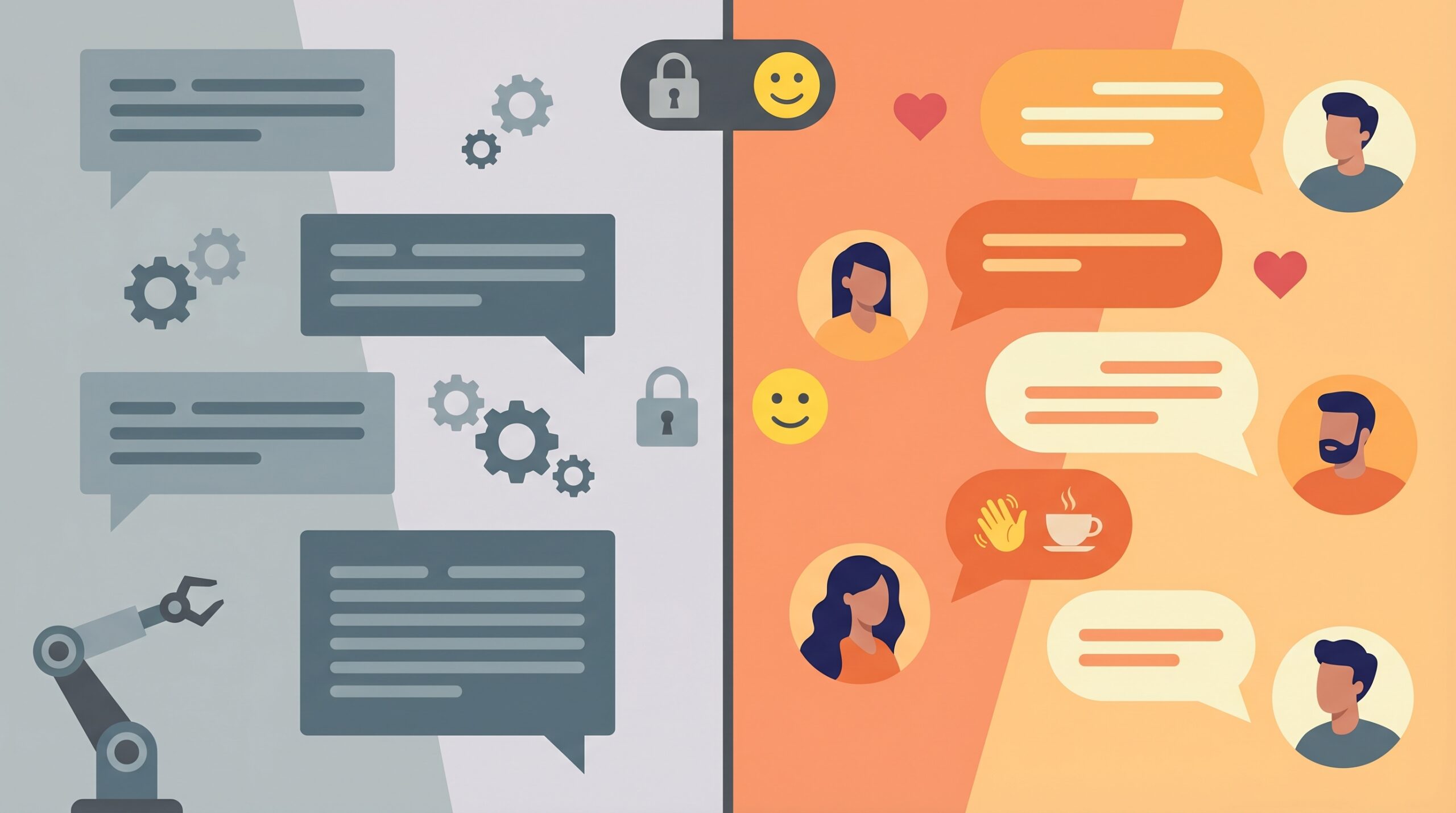
The problem is not the AI. It is the defaults.
Most email automation tools ship with a corporate-friendly voice. Everything is “delighted” and “thrilled” and “please do not hesitate.” Real people do not write like that. Your customers can tell within two sentences that they are not talking to a person.
The fix is not to make the AI pretend to be human. The fix is to give it a voice worth listening to. Short sentences. Direct answers. A tone that matches how your business actually communicates. OpenClaw lets you control this through your SOUL.md and AGENTS.md configuration files, which serve as standing instructions for how the agent writes and behaves.
How OpenClaw Automates Email Responses
OpenClaw connects to your email through a few paths. The most common for small businesses is the gog skill, which links your Gmail or Google Workspace account. There is also direct IMAP integration and services like Resend for dedicated email APIs. Our guide on connecting OpenClaw to email covers the full technical setup.
Once connected, you have two modes for handling replies:
Draft Mode (Start Here)
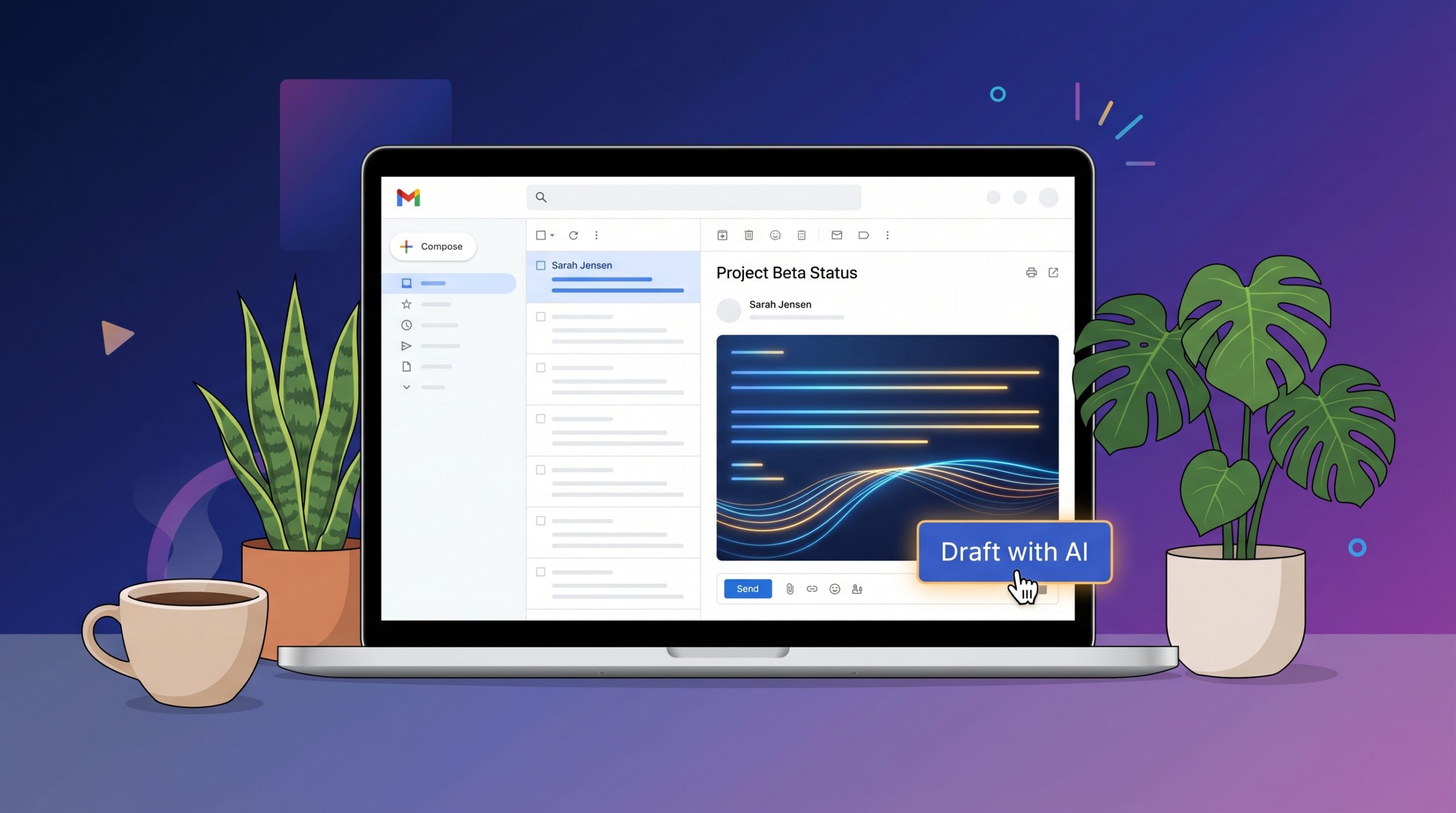
OpenClaw reads incoming email, understands the context, and writes a reply draft. That draft sits in your inbox or gets pushed to Telegram or Discord. You review the draft, make changes if needed, and approve it for sending.
This is the safest starting point. You keep quality control while cutting your response time from hours to minutes. The AI does the heavy lifting: reading the thread, understanding what the person is asking, and composing a relevant reply. You just say yes or no.
Auto-Send Mode (Use with Rules)
For specific message types, you can configure OpenClaw to send replies automatically without your approval. This works for order confirmations, FAQ responses, scheduling confirmations, and after-hours acknowledgments.
Auto-send for complex customer questions is where businesses get into trouble. Start with draft mode. Graduate specific categories to auto-send only after you have reviewed 20 to 30 drafts and they consistently match your standards.
Tired of Copy-Pasting the Same Replies?
OpenClaw drafts email responses in your voice and queues them for approval. Set it up once, review in seconds.
Configuring Your Email Tone
This is the part most guides skip. OpenClaw does not have one fixed voice. You define the voice through your workspace configuration, and that voice applies to every email the agent drafts or sends.
Here is what to put in your SOUL.md file to control email tone:
- Writing style directives: “Use plain English. Short sentences. Sound like a competent operator, not a help desk script.”
- Anti-patterns: “No ‘delighted to assist.’ No filler phrases like ‘hope this finds you well.’ No hedging language.”
- Personality notes: “Be direct. Answer the question first, then add context. Match the customer’s formality level.”
- Paragraph rules: “Keep paragraphs to two or three sentences. Never write a block longer than four sentences.”
The result is not perfect. But it is good enough that most recipients will not question whether a person wrote it. The more you refine your SOUL.md based on drafts you review, the better it gets over time.
You can also configure different tones for different contexts. A reply to a frustrated customer should read differently from a routine scheduling confirmation. OpenClaw picks up on emotional cues in the incoming message and adjusts. But only if your configuration tells it to pay attention to those cues.
Setting Up Escalation Rules
Not every email should get an automated response, even a drafted one. Some messages need a human right away. OpenClaw handles this through escalation rules in your AGENTS.md or through cron-based monitoring.
Categories worth escalating directly to you:
- Angry or urgent language: Messages with words like “unacceptable,” “legal,” or “complaint” should skip the AI entirely and ping you immediately.
- High-value opportunities: Enterprise deal inquiries, partnership requests, or anything over a dollar threshold you define.
- Novel situations: Questions the AI has not seen before, where the risk of a wrong answer is high.
- Sensitive topics: Anything involving cancellations, refunds, or disputes.
OpenClaw flags these messages and sends you a notification on Telegram or Discord with the full email context. You jump in and respond directly. The AI handles everything else.
This is covered in more detail in our customer service automation guide, which walks through the full triage and routing setup.
Want Email Automation That Sounds Natural?
We configure OpenClaw to match your voice, set up escalation rules, and optimize your email workflow. Full setup in about 48 hours.
The Tells That Expose AI Email
These patterns show up constantly in AI-drafted emails and immediately give away that a machine wrote them:
Lists of exactly three. AI loves grouping things in threes. “Fast, reliable, and affordable.” “Simple, powerful, and effective.” Real people do not naturally cluster things in threes every other sentence. Mix it up. Use two items. Use five. Break the pattern.
Filler that sounds thoughtful but means nothing. Phrases like “it bears mentioning” or “it should be emphasized” are padding. They add words without adding information. Cut them.
Promotional tone for simple answers. If someone asks “What are your hours?”, the answer is “9-5 PT, Monday through Friday.” Not a paragraph about how your dedicated team is thrilled to serve customers during extended business hours.
Identical rhythm across every reply. If every response has the same sentence structure and cadence, it reads automated. Vary sentence length. Start some sentences with “But” or “And.” Let the tone shift depending on what the email is about.
These are fixable. Each one comes down to what you put in your SOUL.md and how much review time you invest during the first week of drafts.
A Practical Workflow for Email Automation
Here is a workflow that works for most small businesses. It balances speed with quality control:
Step 1: Connect your email. Use the gog skill for Gmail or IMAP for other providers. Authenticate and verify OpenClaw can read your inbox. This takes about 10 minutes with our email monitoring setup guide.
Step 2: Configure your voice. Write SOUL.md directives that match how you actually speak in email. Look at your last 20 sent emails and extract patterns. Short or long sentences? Formal or casual? Write those rules into your config.
Step 3: Start in draft mode. Let OpenClaw draft replies for everything. Review every draft for the first week. Approve the good ones, edit the mediocre ones, and note what keeps going wrong.
Step 4: Graduate categories to auto-send. After a week of reviewing drafts, identify the message types where the AI consistently nails it. Move those to auto-send. Keep everything else in draft mode.
Step 5: Monthly audit. Spot-check a handful of auto-sent replies every month. If quality drifts, tighten your SOUL.md directives or move categories back to draft mode until you correct the behavior.
This is not a set-it-and-forget-it system. But it cuts response time significantly while keeping quality high enough that customers do not notice the difference. The first week of draft review is the hardest part. After that, the process gets faster as both the AI and the human reviewer settle into a rhythm.
One thing to watch for: email volume spikes. If you run a promotion or launch a product and suddenly get five times your normal email, draft mode can feel overwhelming. That is when having a few categories already set to auto-send pays off. The routine stuff handles itself while you focus on the surge.
Ready to Stop Spending Hours on Email?
OpenClaw Ready handles the full setup: email connection, tone calibration, escalation rules, and ongoing optimization.
When You Should Not Automate Email
Some emails should never be automated. Sales negotiations. Apology emails for service failures. Anything involving money disputes, cancellations, or legal language. Personal messages from long-term clients who expect to hear from you directly.
The temptation is to automate everything once you see how much time it saves. Resist it. Automate the repetitive bulk of your email. Save your actual human attention for the conversations where your involvement changes the outcome. That is the entire point of email automation with OpenClaw: not replacing you, but freeing you to be present where it counts.
If you want help setting this up properly, OpenClaw Ready handles the full configuration from email connection through tone calibration and escalation rules.