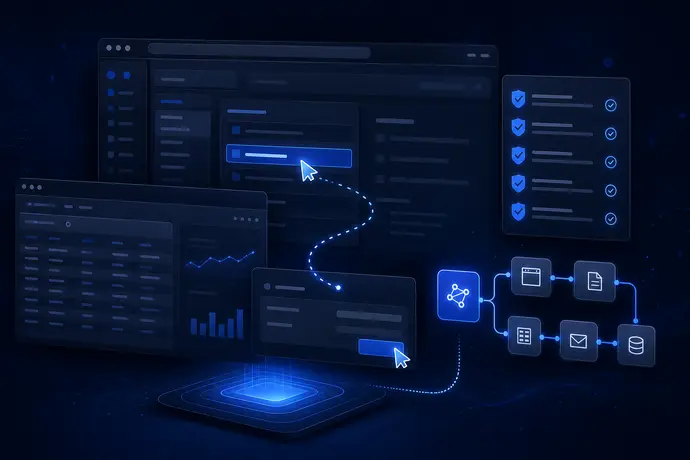
Claude computer use automation sounds simple: give Claude a screen, let it click around, and watch the work finish itself. The useful version is more careful. It starts with one boring workflow, clear limits, and a human review step before anything touches money, customer data, or production systems.
That does not make the feature weak. It makes it usable. Anthropic’s computer use tool lets Claude view screenshots, move the mouse, type, and use desktop interfaces through the API. The same documentation also calls the feature beta and warns that internet-connected tasks carry different risks than normal text prompts.
So the real question is not whether Claude can control a browser. It can. The better question is where that control belongs inside a business workflow without creating a fragile mess.
What claude computer use automation actually means
Computer use is different from a normal API integration. A typical integration sends structured data to a known endpoint. Computer use asks Claude to operate software more like a person: inspect the screen, choose a button, type into a form, open another page, and continue until the task is complete.
That is powerful because many business processes still live in awkward places. Vendor portals. Internal dashboards. Old web apps with no API. Browser tools that work fine for a human but are painful to automate with code.
Anthropic’s docs describe four core capabilities: screenshot capture, mouse control, keyboard input, and desktop automation. The public launch post also said early users were testing workflows that required dozens, and sometimes hundreds, of steps. That is the appeal. Claude can bridge software gaps when a clean integration does not exist.
But there is a catch. A screen is messy. Buttons move. Modals appear. Login sessions expire. A website can show instructions that conflict with your actual goal. And because the agent is reading what appears on the screen, prompt injection becomes more than a chat problem. It can become an action problem.
Want computer-use automation without giving it the keys to everything?
OpenClaw Ready helps teams design safer agent workflows with clear permissions, review points, and useful automations.
Best use cases for claude computer use automation
The safest starting point is repetitive work where the cost of a mistake is low and the review trail is easy to inspect. Think browser-based research, dashboard checks, data collection from a known source, QA passes, and internal admin that ends in a draft instead of a final submission.
A good first workflow might ask the agent to open a reporting dashboard, capture visible figures, compare them against a checklist, and write a summary into a queue. Another good fit is browser testing: open a staging page, click through the expected path, take screenshots, and flag anything that looks broken.
Computer use gets riskier when the workflow includes irreversible actions. Submitting forms, changing customer records, approving transactions, accepting terms, deleting files, or sending external messages should require confirmation. Anthropic specifically recommends human confirmation for decisions with meaningful real-world consequences.
If you already use OpenClaw, this maps neatly to a staged automation model. Use OpenClaw browser control for contained browsing tasks, use OpenClaw webhook setup when a reliable API event exists, and reserve computer control for the parts that truly need visual interaction.
Where claude computer use automation breaks
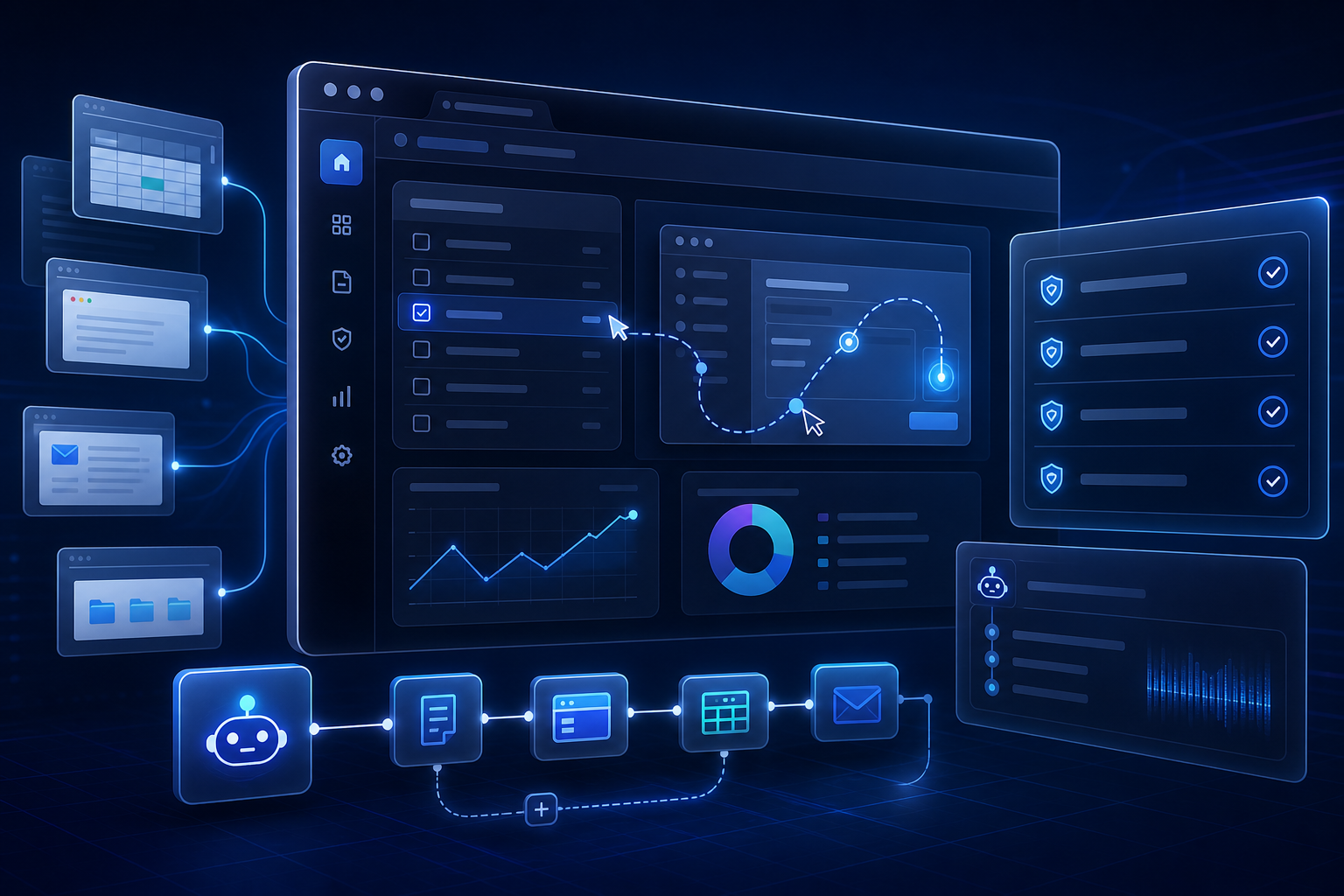
The failure modes are not mysterious. They are the same problems that annoy humans, except an agent may not know when to stop.
First, visual ambiguity. A button label changes, a banner covers the page, or the agent clicks the wrong similar-looking control. Second, brittle state. The workflow assumes a user is logged in, but the session has expired. Third, hidden instructions. A webpage, image, email, or document can contain text that tries to steer the model away from the owner’s intent.
Anthropic’s computer use documentation is blunt about this. It says Claude can sometimes follow commands found in content, even when those commands conflict with the user’s instructions. That is the part people underweight. The risk is not just a bad answer. The risk is a bad click.
There is also a workflow-design problem. If you ask an agent to “handle support tickets,” you have not created automation. You have created a vague job description. The agent needs a narrow task, allowed systems, stop conditions, and a known output format.
One uncomfortable nuance: even strong guardrails will not make browser control fully deterministic. You are still using a model in a changing interface. The goal is not perfect certainty. The goal is to shrink the blast radius so mistakes are recoverable.
Guardrails that make claude computer use automation safer
Start with isolation. Anthropic recommends a dedicated virtual machine or container with minimal privileges. That is the right default. The agent should not run inside your main desktop session with access to every tab, file, password manager, and private message.
Then limit where it can go. Domain allowlists are boring but useful. If the workflow only needs your analytics tool and a staging website, the agent should not have open internet access. If it only needs a test account, do not give it a production admin account.
Next, split tasks into stages. Stage one gathers information. Stage two prepares a draft. Stage three asks for approval. Stage four executes only the approved action. This pattern works well for sales follow-up, QA notes, internal reporting, and operations checks because the human reviews the decision before the agent creates external consequences.
Logging matters too. Capture screenshots, tool calls, timestamps, and final outputs. When something goes wrong, you need to know whether the agent misunderstood the task, saw bad information, clicked the wrong target, or ran into a website change.
Build the workflow before you hand it a browser.
A good setup defines what the agent can open, what it can change, and when a human has to approve the next step.
How to decide between APIs, OpenClaw workflows, and computer use
Use the most reliable tool that solves the job. If a webhook or API can do the work cleanly, use that first. Structured integrations are easier to test, easier to monitor, and less sensitive to page layout changes.
Use OpenClaw workflows when the job needs memory, routing, scheduled checks, channel-specific output, or multiple tools working together. For example, Claude AI business automation becomes more useful when the agent can pull context, hand off to a sub-agent, write a draft, and notify the right place instead of dumping everything into one chat.
Use computer use when the system has no good integration path, the interface is visual, and the task can be boxed in. It is a bridge, not the whole operating system. That distinction saves teams from overbuilding around a beta feature before the workflow deserves it.
A practical setup checklist
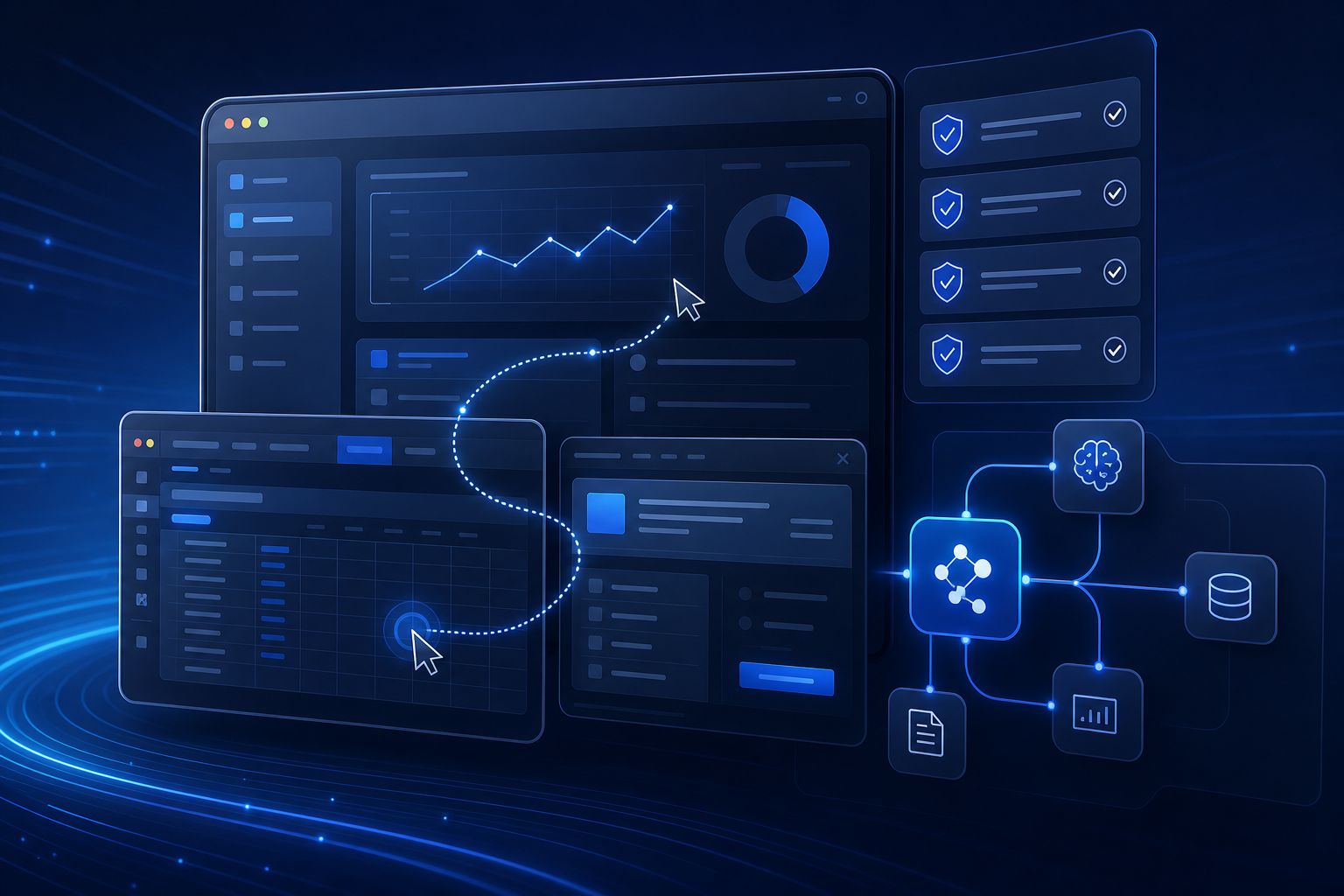
Before turning on computer use for a real workflow, write the workflow down in plain English. What is the trigger? Which apps are allowed? What data can the agent see? What actions are forbidden? What output should it produce? Where does approval happen?
Then create a test environment. Use a sandbox account, fake records, and a limited browser profile. Run the workflow on the same task several times and compare the logs. If the agent behaves differently each time, the workflow may be too vague or the interface may be too unstable.
After that, add stop rules. Stop if login appears. Stop if a page asks for payment. Stop if the agent sees private customer information it does not need. Stop if the page includes instructions that are unrelated to the task. Stop if confidence drops because the expected element is missing.
Finally, promote only one narrow workflow at a time. A safe first version might create drafts, summaries, tickets, or screenshots. Once that works, you can decide whether a later version should perform approved actions. Do not skip straight from demo to production admin access.
A simple rule helps: if the task would make you nervous to delegate to a new contractor with no company context, it is too broad for unsupervised computer use. Narrow the job until the agent can either finish safely or stop cleanly. That usually means one source system, one output, and one approval point.
This is also where documentation pays off. Write down the expected screen, the allowed next actions, and the exact handoff message. When the interface changes, you can update the workflow instead of guessing why the agent drifted.
The bottom line
Claude computer use automation is useful when the workflow is visual, repetitive, and hard to reach through normal integrations. It is a poor fit for broad autonomy, sensitive systems, or vague requests that leave too much judgment to the model.
The winning setup is not flashy. It is isolated, limited, logged, and reviewed. That is how you get the benefit of browser-level automation without pretending a beta computer-control feature is a fully trusted employee.
If you are building with OpenClaw, treat computer use as one tool inside a larger automation stack. Use APIs where they work. Use OpenClaw for orchestration. Use computer control only where the screen is the unavoidable interface.
Need a safer OpenClaw setup path?
Start with one contained workflow, then expand only after the logs prove it behaves well.
{
“@context”: “https://schema.org”,
“@type”: “Article”,
“headline”: “Claude Computer Use Automation: What It Can Do, Where It Breaks, and How to Add Guardrails”,
“author”: {
“@type”: “Organization”,
“name”: “OpenClaw Ready”
},
“publisher”: {
“@type”: “Organization”,
“name”: “OpenClaw Ready”,
“logo”: {
“@type”: “ImageObject”,
“url”: “https://openclawready.com/wp-content/uploads/2026/01/openclawready-logo.png”
}
},
“datePublished”: “2026-05-29T10:21:29+00:00”,
“dateModified”: “2026-05-29T10:21:29+00:00”,
“mainEntityOfPage”: {
“@type”: “WebPage”,
“@id”: “https://openclawready.com/blog/claude-computer-use-automation/”
},
“url”: “https://openclawready.com/blog/claude-computer-use-automation/”,
“description”: “Claude computer use automation needs guardrails. Learn safe use cases, setup steps, and when OpenClaw fits.”,
“image”: “https://openclawready.com/wp-content/uploads/2026/05/claude-computer-use-automation-openclawready-9cd38fc5-f381-4e4b-97a2-87766f7276bd.png”
}