Why I stopped checking email every 20 minutes
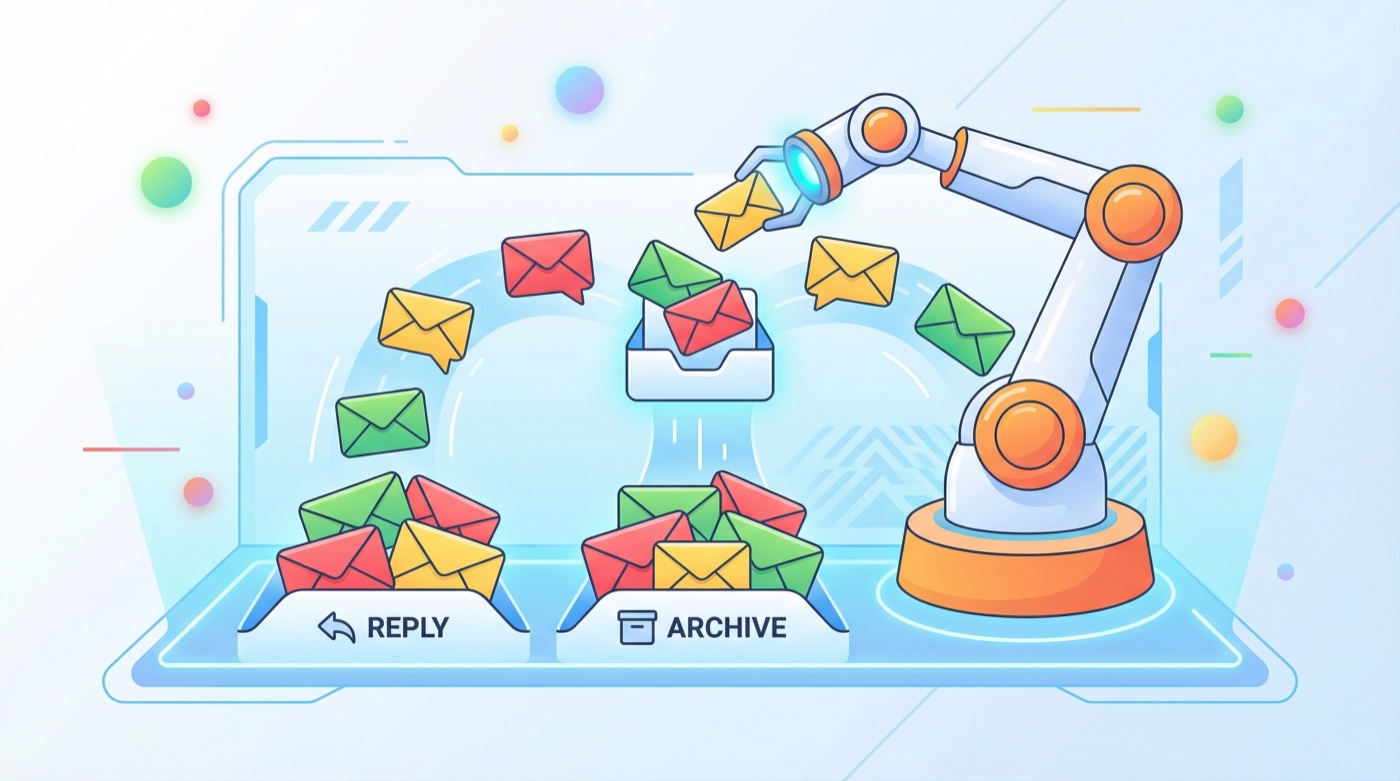
I used to be that person. Phone buzzing, Gmail tab always open, constantly scanning for anything urgent buried between newsletters and spam. When I decided to set up OpenClaw email monitoring auto replies, that changed completely. My AI agent watches my inbox around the clock, flags what matters, drafts responses, and lets the rest pile up quietly until I’m ready to deal with it.
This tutorial walks through exactly how I configured it, step by step, so you can do the same thing in about 30 minutes.
Want an AI agent that handles your inbox while you sleep?
OpenClaw monitors email, drafts replies, and alerts you on Telegram when something actually matters.
Skip the Setup Headaches
Our team handles your entire OpenClaw setup – hardware, integrations, automations – so you can focus on running your business. Most clients are fully operational in 48 hours.
What you need before setting up OpenClaw email monitoring
This guide assumes you already have OpenClaw installed and running. If you’re starting from scratch, check out our complete setup guide first.
Here’s what you’ll need ready:
- A working OpenClaw installation (Mac, Linux, or Raspberry Pi)
- A Gmail or Google Workspace account
- The
gogskill installed (OpenClaw’s Google Workspace integration) - A messaging channel configured (Telegram works best for real-time alerts)
The gog skill handles Gmail, Google Calendar, Drive, Contacts, Sheets, and Docs through a single CLI. For email monitoring, we only need the Gmail portion, but having the full skill installed opens up calendar-aware auto-replies later.
Step 1: Install and authenticate the gog skill
First, install the gog skill if you haven’t already:
openclaw skill install gogNext, you need to authenticate with Google. The gog skill uses OAuth2, which means Google gives OpenClaw permission to read and send email on your behalf without ever sharing your password.
gog auth loginThis opens a browser window where you sign into your Google account and approve the permissions. You’ll see scopes for Gmail read/write, which is expected. The refresh token gets stored locally on your machine, so your credentials never leave your hardware.
Test it with a quick inbox check:
gog gmail list --max 5If you see your five most recent emails, you’re connected.
Step 2: Set up OpenClaw email monitoring with heartbeats
OpenClaw has two ways to run recurring tasks: heartbeats and cron jobs. For email monitoring, I recommend using heartbeats because they let you batch multiple checks together (inbox plus calendar plus whatever else) in a single API call.
Open your HEARTBEAT.md file in the OpenClaw workspace:
# Email check
- Check Gmail for unread messages from the last 30 minutes
- If any are from VIP contacts (clients, family, business partners): alert me on Telegram immediately
- If any look like they need a reply within 24 hours: draft a response and save it
- Ignore newsletters, promotional emails, and automated notifications
The heartbeat runs every 30 to 55 minutes by default. OpenClaw reads HEARTBEAT.md each time and follows the instructions. No code required. Just plain English.
For more frequent monitoring, you can adjust the heartbeat interval in your gateway config. I run mine every 30 minutes during business hours and hourly overnight.
Step 3: Create a VIP contact list
The monitoring works better when your agent knows who matters. Create a simple file in your workspace:
# ~/clawd/config/vip-contacts.md

# Always alert immediately
- jane@clientcompany.com (biggest client)
- mike@partner.io (business partner)
- mom@gmail.com (family)

# Alert during business hours only
- recruiter@company.com
- accountant@firm.com

# Never alert (but save summaries)
- newsletters, marketing, automated receipts
Reference this file in your HEARTBEAT.md or agent instructions. OpenClaw reads the file each time and applies the rules. When your VIP list changes, just edit the file. No redeployment, no config reload.
How to set up OpenClaw auto-replies for common emails
This is where it gets interesting. Instead of just monitoring, you can have OpenClaw draft and even send replies automatically.
I use a cron job for auto-replies because I want more control over the timing and isolation from my main session. Here’s the cron setup:
openclaw cron add \
  --name "email-auto-reply" \
  --schedule "0 */2 * * *" \
  --session-target isolated \
  --payload-kind agentTurn \
  --message "Check Gmail for emails that need replies. For scheduling requests, check my Google Calendar and suggest available times. For common questions about my services, use the FAQ in ~/clawd/config/email-faq.md to draft responses. Save all drafts to ~/clawd/drafts/email/ for my review. Never send without my approval unless the sender is on the auto-send list."
This runs every two hours in its own isolated session. The agent checks email, cross-references your calendar for scheduling requests, and writes draft replies based on your FAQ document.
Tired of writing the same email replies over and over?
Let OpenClaw handle the repetitive stuff while you focus on work that actually moves the needle.
Skip the Setup Headaches
Our team handles your entire OpenClaw setup – hardware, integrations, automations – so you can focus on running your business. Most clients are fully operational in 48 hours.
The approval workflow: keeping humans in the loop
I want to be clear about something: I don’t let my AI agent send emails without my say-so. Not yet, anyway. The trust needs to build over time.
Here’s the workflow I use:
- OpenClaw detects an email that needs a reply
- It drafts a response based on context, my FAQ, and my writing style
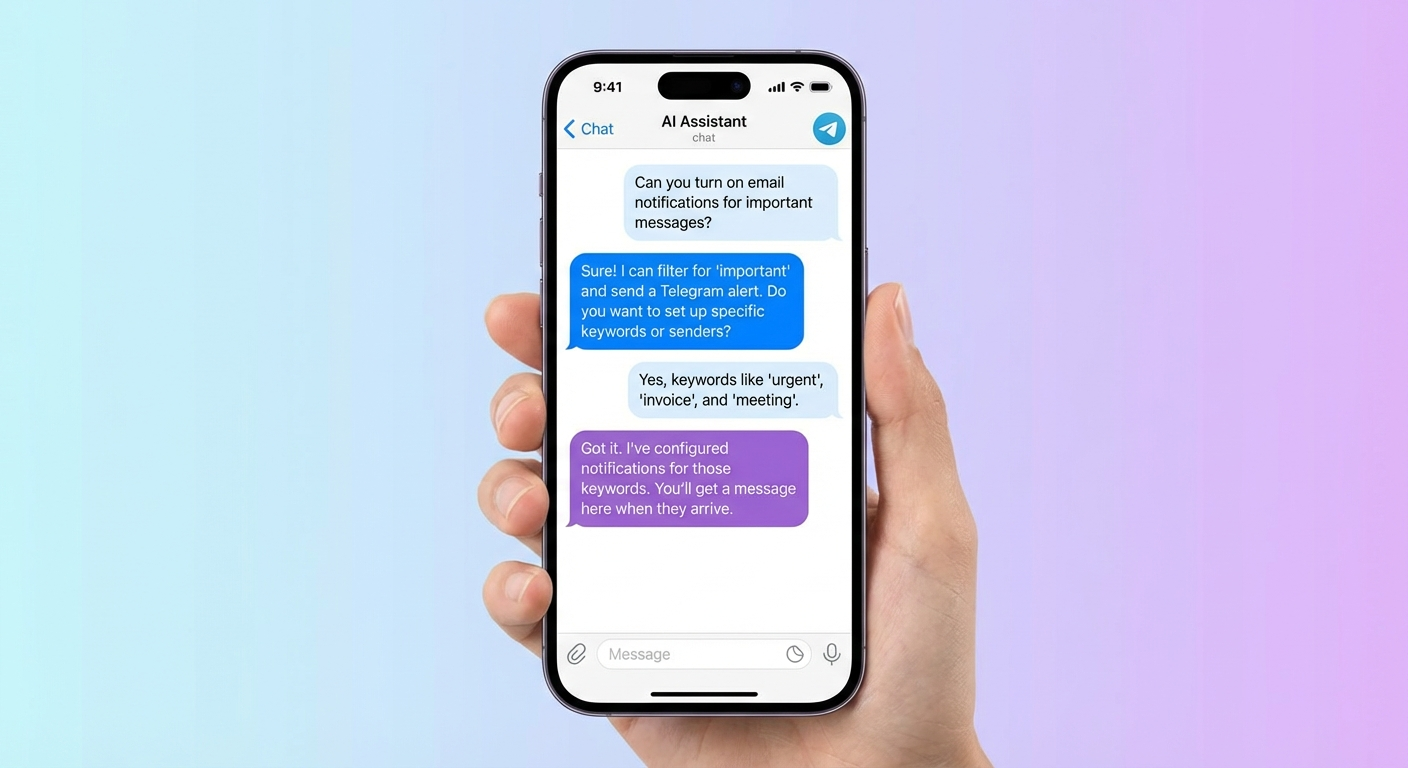
- It sends me a Telegram message: “Draft reply to Jane about the Q3 proposal. Want me to send it?”
- I review the draft, tap approve, and it sends
- If I want changes, I tell it what to fix right there in Telegram
The whole review takes maybe 15 seconds per email. Compare that to the 3-5 minutes I used to spend context-switching, reading the original thread, composing a response, and getting back to whatever I was doing before.
To set this up, make sure you have Telegram connected to your OpenClaw instance. The agent uses inline buttons for approve/reject, so you can handle everything from your phone.
Building your email FAQ for smarter auto-replies
The quality of auto-replies depends entirely on what you give your agent to work with. I keep an FAQ document that covers the questions I get asked repeatedly:
# ~/clawd/config/email-faq.md

# Pricing questions
Our consulting starts at $150/hour. Project rates depend on scope.
For projects under 20 hours, we bill hourly. Over 20, we do fixed-price.

# Availability
I typically respond within 24 hours on weekdays.
For urgent matters, text me at [number].

# Meeting scheduling
I'm generally available Tuesday through Thursday, 10am-4pm Pacific.
Book directly at [scheduling link] or suggest times and I'll confirm.

# Common requests I decline
- Unpaid consulting calls
- "Pick your brain" coffee chats
- Guest post requests (unless the site has real traffic)
The agent reads this file every time it drafts a reply. When someone emails asking about pricing, the draft pulls from your actual numbers instead of making something up. Update the FAQ whenever your situation changes.
Advanced: calendar-aware scheduling replies
One of my favorite features is combining email monitoring with calendar access. When someone asks “Are you free next week?”, OpenClaw can:
- Check your Google Calendar for the requested timeframe
- Find open slots that match your preferences (no early mornings, no Fridays)
- Draft a reply with specific time suggestions
- Send it after your approval
The gog skill handles both Gmail and Calendar through the same authentication, so there’s no extra setup. Just add calendar-checking instructions to your cron job prompt.
I have mine configured to never suggest times before 10am or after 4pm, and to always leave 30-minute buffers between meetings. These preferences live in a config file that the agent reads each time, so adjusting them is as simple as editing a text file.
Setting up email monitoring on OpenClaw with notifications that actually help
Bad notifications are worse than no notifications. If your agent pings you for every new email, you’ve just replaced one distraction with another.
Here’s how I structure my notification tiers:
Tier 1 – Immediate (any time of day): Emails from VIP contacts, anything with “urgent” in the subject, replies to emails I sent in the last 2 hours.
Tier 2 – Batched (every 4 hours): Emails that probably need a reply today but aren’t urgent. The agent sends a summary digest instead of individual alerts.
Tier 3 – Daily summary (9am): Everything else worth knowing about. Newsletter highlights, receipts, shipping notifications, low-priority threads.
You configure these tiers in your HEARTBEAT.md or cron instructions. The agent handles the categorization based on sender, subject, and content. It gets better over time as you give it feedback. “That email from shipping@amazon.com doesn’t need a Tier 1 alert” and it adjusts.
Privacy and security considerations
Giving an AI agent access to your email is a serious decision. Here’s why I’m comfortable with it in OpenClaw’s case:
- Everything runs locally. Your emails get processed on your own machine. No data leaves your hardware unless you explicitly send a reply.
- OAuth2 tokens stay on disk. The credentials are stored in your local filesystem with restricted permissions. OpenClaw doesn’t phone home.
- You control the scope. The gog skill requests only the Gmail permissions you approve. You can revoke access from your Google account settings at any time.
- Open source. You can read the actual code that touches your email. No black boxes.
Compare this to cloud-based alternatives like Lindy AI, Shortwave, or SaneBox where your emails pass through third-party servers. With OpenClaw, the processing happens on hardware you own.
That said, if someone gains access to your OpenClaw machine, they could read your email through the agent. Standard security practices apply: keep your machine updated, use strong SSH keys, and follow the hardening steps in our Mac Mini setup guide.

Skip the Setup Headaches
Our team handles your entire OpenClaw setup – hardware, integrations, automations – so you can focus on running your business. Most clients are fully operational in 48 hours.
What this actually looks like day to day
I’ve been running this setup for a few months now. Here’s an honest picture of how it works in practice:
Most mornings, I wake up to a Telegram summary of overnight emails. Usually 2-3 things that need attention, with draft replies already waiting. I review them over coffee, approve or tweak, and I’m done with email before I even open my laptop.
During the workday, I get maybe 2-3 Tier 1 alerts for genuinely important emails. The agent handles the rest silently. Scheduling emails get auto-drafted with available times from my calendar.
The drafts aren’t perfect every time. Maybe 70% are good enough to send as-is. Another 20% need minor edits. The remaining 10% I rewrite completely. But even that 10% saves time because the agent already pulled the relevant context and figured out what the email was about.
The biggest win isn’t time saved per email. It’s the mental space I got back from not constantly monitoring my inbox. I check email on my terms now, not whenever Gmail decides to ping me.
Ready to take back your inbox?
Get OpenClaw set up with email monitoring, auto-replies, and smart notifications.