Key Takeaways
- Most OpenClaw setups have zero security monitoring – no alerts for failed logins, no disk space warnings, no config change detection.
- Three bash scripts cover the biggest blind spots: SSH/login failure detection, disk space monitoring at 85%/90% thresholds, and daily configuration drift audits.
- Each script runs as an OpenClaw cron job and sends Telegram alerts only when something is actually wrong – no noise when everything is healthy.
- The entire setup takes about 10-15 minutes and costs nothing beyond your existing OpenClaw installation.
- The Verizon 2025 DBIR found that 22% of breaches started with credential abuse. SSH brute-force attacks account for roughly 89% of endpoint attack behaviors on servers (Cyber Crimes Watch, 2026).
You Are Probably Running OpenClaw Blind
Here is something most OpenClaw users don’t think about: your AI assistant runs 24/7 on a machine connected to the internet, handling credentials, reading files, executing commands, and talking to APIs. And unless you’ve set up OpenClaw security alerts, you have zero visibility into what’s happening at the system level.
No alerts when someone tries to brute-force SSH on your Mac Mini. No warning before your disk fills up and crashes the whole system. No notification when your OpenClaw config changes in ways you didn’t intend.
The Verizon 2025 Data Breach Investigations Report found that 22% of breaches started with credential abuse and 88% of system intrusion breaches involved stolen credentials. These stats come from enterprise environments, but automated SSH scanners don’t check whether you’re running a Fortune 500 data center or an AI assistant on a Mac Mini in your home office. They scan everything.
We ran our setup this way for months before building the monitoring system described in this guide. Nothing bad happened during that time – but we had no way to know that. The absence of visible problems isn’t the same as knowing you’re secure.
According to IBM’s 2025 Cost of a Data Breach report, it takes organizations an average of 241 days to identify and contain a breach. That’s 8 months of not knowing something is wrong. We’re not enterprise targets, but the principle applies: if you can’t see problems, you can’t fix them.
This guide walks through the three security alerts we built for our own OpenClaw setup. Each one is a bash script that runs as an OpenClaw cron, checks for a specific problem, and sends a Telegram message only when something needs attention. When everything is fine, they stay silent.
Prerequisites
Before you start, make sure you have:
- OpenClaw installed and running – if you’re not there yet, follow our complete setup guide
- Telegram connected to OpenClaw – see our guide on connecting Telegram, Discord, and WhatsApp
- Basic bash comfort – you’ll be saving scripts and making them executable, but you don’t need to write code from scratch
- A dedicated machine – most people run OpenClaw on a Mac Mini or similar always-on hardware
Don’t want to set this up yourself?
We configure security alerts, cron jobs, and full OpenClaw setups for business owners who’d rather skip the terminal work.
What These Three Alerts Cover
We picked these three alerts because they address the most likely failure modes for a personal AI assistant running on dedicated hardware:
- Failed login detection – catches SSH brute-force attempts and local auth failures before they become a real problem
- Disk space monitoring – warns you before your disk fills up and crashes OpenClaw, your databases, and everything else running on the machine
- Daily config drift audit – detects unauthorized changes to your OpenClaw config, secret files, listening ports, SSH key permissions, and firewall status
All three share the same design principle: alert on problems, stay quiet when healthy. Nobody wants a Telegram message every hour saying “everything is fine.” You want silence during normal operations and immediate notification when something breaks.
Alert 1: Failed SSH and Login Detection
Brute-force attacks targeting SSH are not just a server farm problem. According to research published by Cyber Crimes Watch in January 2026, SSH brute-force attacks account for roughly 89% of endpoint attack behaviors on Linux and Unix servers. While OpenClaw typically runs on macOS, the attack pattern is the same: automated scanners probe SSH ports regardless of operating system. ASEC’s Q4 2025 report on SSH malware showed that these scanning and dictionary attacks run constantly, hitting everything from enterprise data centers to home lab machines.
If your Mac Mini has Remote Login enabled (even temporarily for troubleshooting), it is a target. If it doesn’t, you still want to know about failed sudo attempts or screensaver authentication failures, because those could indicate someone with physical or network access trying credentials they shouldn’t have.
What the Script Checks
Our alert-ssh-failures.sh script queries the macOS unified log for three categories of failures:
- SSH failures – failed passwords, invalid usernames, refused connections from the sshd process
- Auth failures – incorrect sudo passwords, loginwindow authentication failures, screensaver authentication failures
- SSH status – whether Remote Login (sshd) is currently enabled on the Mac, since many users enable it for setup and forget to turn it off
The script takes two parameters: check window (default 1 hour) and failure threshold (default 3). This means it won’t bother you about a single mistyped password. But if someone (or something) tries 4+ different credentials in an hour, you’ll know immediately.
The Script
#!/bin/bash
# alert-ssh-failures.sh - Detect failed SSH/login attempts on macOS
set -uo pipefail

HOURS=${1:-1}
THRESHOLD=${2:-3}

# Check SSH (sshd) failed logins via macOS unified log
SSH_FAILURES=$(log show --predicate 'process == "sshd" AND (eventMessage CONTAINS "Failed" OR eventMessage CONTAINS "Invalid user" OR eventMessage CONTAINS "refused")' --last "${HOURS}h" --style compact 2>/dev/null | grep -v "^$" | grep -v "^Filtering" | grep -v "^Timestamp" || true)
SSH_COUNT=$([ -z "$SSH_FAILURES" ] && echo 0 || echo "$SSH_FAILURES" | wc -l | tr -d ' ')

# Check for failed sudo/login attempts
AUTH_FAILURES=$(log show --predicate '(process == "sudo" AND eventMessage CONTAINS "incorrect password") OR (process == "loginwindow" AND eventMessage CONTAINS "Authentication failed") OR (process == "screensaver" AND eventMessage CONTAINS "failed")' --last "${HOURS}h" --style compact 2>/dev/null | grep -v "^$" | grep -v "^Filtering" | grep -v "^Timestamp" || true)
AUTH_COUNT=$([ -z "$AUTH_FAILURES" ] && echo 0 || echo "$AUTH_FAILURES" | wc -l | tr -d ' ')

# Check if SSH remote login is unexpectedly enabled
SSH_ENABLED=$(launchctl list 2>/dev/null | grep -c "com.openssh.sshd" || echo "0")

TOTAL=$((SSH_COUNT + AUTH_COUNT))
ALERT=""

if [ "$SSH_ENABLED" -gt 0 ]; then
    ALERT+="⚠️ SSH remote login (sshd) is ENABLED on this Mac.\n"
fi

if [ "$TOTAL" -gt "$THRESHOLD" ]; then
    ALERT+="🚨 ${TOTAL} failed login attempts in the last ${HOURS}h\n"
    [ "$SSH_COUNT" -gt 0 ] && ALERT+="  - SSH failures: ${SSH_COUNT}\n"
    [ "$AUTH_COUNT" -gt 0 ] && ALERT+="  - Auth failures: ${AUTH_COUNT}\n"
fi

if [ -n "$ALERT" ]; then
    echo -e "$ALERT"
    exit 1
else
    exit 0
fi
When everything is clean, the script exits silently with code 0. OpenClaw only forwards the output to Telegram when exit code is non-zero, meaning you’ll only ever hear from this script when something needs your attention.
Alert 2: Disk Space Monitoring
A few months ago, our OpenClaw workspace quietly grew to 1.5GB from accidental dependency installs. We caught it during a manual check, but it could have kept growing until the disk was full. When that happens to a machine hosting an AI assistant, the results are ugly.
Running out of disk space on a production machine is worse than it sounds. Databases crash because they can’t write transaction logs. Log files stop recording (which means you lose visibility into other problems too). Services fail to restart because they can’t create temporary files. On macOS, the system reserves roughly 5% of disk for root operations, but once even that buffer runs out, the machine becomes essentially unusable without manual intervention.
VMware’s documentation shows that their vCenter service automatically shuts down at 95% capacity to prevent data corruption. For a personal OpenClaw setup, you probably don’t want to wait until 95%. Our script uses two thresholds: warning at 85% and critical at 90%.
What the Script Checks
Our alert-disk-space.sh monitors three things:
- Local disk usage – the main Mac drive, with warning at 85% and critical at 90%. At the critical level, it also shows the top space consumers so you know what to clean up.
- Homebrew cache – this silently grows over time. If it’s over 5GB, you get a nudge to run
brew cleanup. - OpenClaw workspace size – if
~/clawdexceeds 2GB, something is probably wrong. Build artifacts, npm modules that shouldn’t be there, large files that crept in. This specific check exists because we learned the hard way.
The Script
#!/bin/bash
# alert-disk-space.sh - Monitor disk usage before it's too late
set -uo pipefail

WARN_THRESHOLD=${1:-85}
CRIT_THRESHOLD=${2:-90}
ALERT=""

# Local Mac disk
LOCAL_USAGE=$(df -h / | tail -1 | awk '{gsub(/%/,"",$5); print $5}')
LOCAL_AVAIL=$(df -h / | tail -1 | awk '{print $4}')

if [ "$LOCAL_USAGE" -ge "$CRIT_THRESHOLD" ]; then
    ALERT+="🔴 CRITICAL: Mac disk at ${LOCAL_USAGE}% (${LOCAL_AVAIL} free)\n"
    ALERT+="  Action needed NOW - system may become unstable.\n"
    ALERT+="  Top space consumers:\n"
    du -sh ~/Library/Caches ~/Library/Application\ Support ~/.Trash ~/Downloads 2>/dev/null | sort -rh | head -5 | while read -r line; do
        ALERT+="    $line\n"
    done
elif [ "$LOCAL_USAGE" -ge "$WARN_THRESHOLD" ]; then
    ALERT+="⚠️ Mac disk at ${LOCAL_USAGE}% (${LOCAL_AVAIL} free) - approaching limit.\n"
fi

# Homebrew cache
BREW_CACHE_SIZE=$(du -sh "$(brew --cache 2>/dev/null)" 2>/dev/null | awk '{print $1}' || echo "0")
BREW_CACHE_BYTES=$(du -s "$(brew --cache 2>/dev/null)" 2>/dev/null | awk '{print $1}' || echo "0")
if [ "$BREW_CACHE_BYTES" -gt 5000000 ]; then
    ALERT+="💡 Homebrew cache is ${BREW_CACHE_SIZE} - run 'brew cleanup' to reclaim space.\n"
fi

# OpenClaw workspace
WORKSPACE_SIZE=$(du -sh ~/clawd 2>/dev/null | awk '{print $1}')
WORKSPACE_BYTES=$(du -s ~/clawd 2>/dev/null | awk '{print $1}' || echo "0")
if [ "$WORKSPACE_BYTES" -gt 2000000 ]; then
    ALERT+="⚠️ OpenClaw workspace is ${WORKSPACE_SIZE} - check for build artifacts or deps.\n"
fi

if [ -n "$ALERT" ]; then
    echo -e "💾 Disk Space Alert:\n$ALERT"
    exit 1
else
    exit 0
fi
Two alerts down, one to go. If setting up bash scripts and cron configs feels like more than you signed up for, we can handle the whole thing.
Alert 3: Daily Configuration Drift Audit
Configuration drift is one of those problems that nobody notices until something breaks. According to Reach Security’s 2026 analysis, drift “increases exposure to cyber threats” and most organizations “remain unaware of how much drift has occurred until an audit, incident, or breach exposes the issue.” Spacelift’s research links unmanaged drift to system instability, security vulnerabilities, and data breaches. And CloudRay’s 2025 analysis puts it bluntly: “Most environments don’t have configuration monitoring, so drift accumulates undetected.”
For an OpenClaw setup, config drift means things like: someone (or some process) changed your openclaw.json without you knowing, a new network port started listening that wasn’t there yesterday, your secret files got modified or their permissions changed, or your macOS firewall got disabled during a software update.
Our config audit script uses a baseline comparison approach. The first time it runs, it records the current state as the baseline. Every subsequent run compares against that baseline and alerts on differences. This means you won’t get alerts about your existing state, only about changes going forward.
What the Script Checks (7 Areas)
- OpenClaw config hash – SHA-256 of openclaw.json, compared against last known good hash
- Secret files integrity – monitors every file in
~/.secrets/clawd/for additions, removals, permission changes, and content modifications - Listening ports snapshot – detects new services that started listening on your network, or expected services that stopped
- SSH key permissions – verifies all SSH private keys maintain 600 permissions (readable only by owner)
- OpenClaw security audit – runs the built-in
openclaw security auditand reports critical findings - macOS firewall status – confirms the application firewall is still enabled
- Workspace size – flags if your OpenClaw workspace has grown beyond 2GB
The Full Script
#!/bin/bash
# alert-config-audit.sh - Daily config drift detection for OpenClaw
set -uo pipefail

BASELINE_DIR="$HOME/clawd/config/baselines"
mkdir -p "$BASELINE_DIR"
ALERT=""
CHANGES=0

# === 1. OpenClaw config hash ===
OC_CONFIG="$HOME/.openclaw/openclaw.json"
if [ -f "$OC_CONFIG" ]; then
    CURRENT_HASH=$(shasum -a 256 "$OC_CONFIG" | awk '{print $1}')
    BASELINE_FILE="$BASELINE_DIR/openclaw-config-hash.txt"
    if [ -f "$BASELINE_FILE" ]; then
        SAVED_HASH=$(cat "$BASELINE_FILE")
        if [ "$CURRENT_HASH" != "$SAVED_HASH" ]; then
            ALERT+="🔧 openclaw.json has changed since last baseline!\n"
            ALERT+="  Previous: ${SAVED_HASH:0:12}...\n"
            ALERT+="  Current:  ${CURRENT_HASH:0:12}...\n"
            ((CHANGES++))
        fi
    fi
    echo "$CURRENT_HASH" > "$BASELINE_FILE"
fi

# === 2. Secret files integrity ===
SECRETS_DIR="$HOME/.secrets/clawd"
if [ -d "$SECRETS_DIR" ]; then
    CURRENT_MANIFEST=$(find "$SECRETS_DIR" -type f -not -name "write-secret.sh" \
        -not -name "README.md" 2>/dev/null | sort | while read -r f; do
        perms=$(stat -f '%Lp' "$f" 2>/dev/null)
        flags=$(ls -lO "$f" 2>/dev/null | awk '{print $5}')
        hash=$(shasum -a 256 "$f" 2>/dev/null | awk '{print $1}')
        echo "$(basename "$f")|$perms|$flags|${hash:0:16}"
    done)
    BASELINE_FILE="$BASELINE_DIR/secrets-manifest.txt"
    if [ -f "$BASELINE_FILE" ]; then
        SAVED_MANIFEST=$(cat "$BASELINE_FILE")
        if [ "$CURRENT_MANIFEST" != "$SAVED_MANIFEST" ]; then
            ALERT+="🔐 Secret files changed since last baseline\n"
            ((CHANGES++))
        fi
    fi
    echo "$CURRENT_MANIFEST" > "$BASELINE_FILE"
fi

# === 3. Listening ports snapshot ===
CURRENT_PORTS=$(lsof -nP -iTCP -sTCP:LISTEN 2>/dev/null | awk 'NR>1{print $1,$9}' | sort -u)
BASELINE_FILE="$BASELINE_DIR/listening-ports.txt"
if [ -f "$BASELINE_FILE" ]; then
    SAVED_PORTS=$(cat "$BASELINE_FILE")
    if [ "$CURRENT_PORTS" != "$SAVED_PORTS" ]; then
        NEW_PORTS=$(diff <(echo "$SAVED_PORTS") <(echo "$CURRENT_PORTS") | grep "^>" | sed 's/^> //' || true)
        if [ -n "$NEW_PORTS" ]; then
            ALERT+="🌐 New listening ports detected:\n"
            echo "$NEW_PORTS" | while read -r line; do
                ALERT+="  + $line\n"
            done
            ((CHANGES++))
        fi
    fi
fi
echo "$CURRENT_PORTS" > "$BASELINE_FILE"

# === 4. SSH key permissions ===
for keyfile in ~/.ssh/id_* ~/.ssh/*_key 2>/dev/null; do
    [ -f "$keyfile" ] || continue
    PERMS=$(stat -f '%Lp' "$keyfile" 2>/dev/null)
    if [ "$PERMS" != "600" ]; then
        ALERT+="🔑 SSH key $(basename "$keyfile") has wrong permissions: $PERMS (should be 600)\n"
        ((CHANGES++))
    fi
done

# === 5. OpenClaw security audit ===
CRITICAL_COUNT=$(openclaw security audit --json 2>/dev/null | python3 -c \
    "import json,sys; d=json.load(sys.stdin); print(d.get('summary',{}).get('critical',0))" \
    2>/dev/null || echo 0)
if [ "$CRITICAL_COUNT" -gt 0 ]; then
    ALERT+="🔴 OpenClaw audit: ${CRITICAL_COUNT} critical issue(s)\n"
    ((CHANGES++))
fi

# === 6. macOS firewall status ===
FW_STATE=$(/usr/libexec/ApplicationFirewall/socketfilterfw --getglobalstate 2>/dev/null \
    | grep -c "enabled" || echo 0)
if [ "$FW_STATE" -eq 0 ]; then
    ALERT+="🔥 macOS Firewall is DISABLED!\n"
    ((CHANGES++))
fi

# === 7. Workspace size ===
WS_SIZE_KB=$(du -sk ~/clawd 2>/dev/null | awk '{print $1}' || echo 0)
if [ "$WS_SIZE_KB" -gt 2097152 ]; then
    WS_SIZE_HUMAN=$(du -sh ~/clawd 2>/dev/null | awk '{print $1}')
    ALERT+="📦 Workspace bloated: ${WS_SIZE_HUMAN}\n"
    ((CHANGES++))
fi

# === Output ===
if [ -n "$ALERT" ]; then
    echo -e "🔍 Config Audit - ${CHANGES} change(s) detected:\n$ALERT"
    exit 1
else
    exit 0
fi
Each check follows the same pattern: capture current state, compare against saved baseline, alert on differences, update the baseline for next time. The baselines are stored in ~/clawd/config/baselines/ and get updated every run, so you’re always comparing against the most recent known-good state.
Setting Up the OpenClaw Crons
The scripts themselves are just bash files. The real power comes from running them as OpenClaw cron jobs. If you haven’t used OpenClaw crons before, they’re scheduled tasks that your AI assistant executes automatically, similar to traditional Unix cron but with the ability to process output and send it through your connected channels.
Here’s how to set them up:
1. Save the scripts and make them executable
# Save all three scripts to your workspace
chmod +x ~/clawd/scripts/alert-ssh-failures.sh
chmod +x ~/clawd/scripts/alert-disk-space.sh
chmod +x ~/clawd/scripts/alert-config-audit.sh
2. Create the OpenClaw cron entries
Use openclaw cron create to set up each alert. The key settings are:
sessionTarget: isolated– runs in its own session, not interrupting your main AI chatagentTurn: true– the cron triggers an agent turn that executes the script- The task prompt tells OpenClaw to run the script and forward any output to Telegram
Example cron configuration for the SSH alert (hourly):
openclaw cron create \
  --schedule "0 * * * *" \
  --label "security-ssh-check" \
  --task "Run bash ~/clawd/scripts/alert-ssh-failures.sh and if exit code is non-zero, send the output to me on Telegram." \
  --session-target isolated \
  --agent-turn
For disk space (every 6 hours):
openclaw cron create \
  --schedule "0 */6 * * *" \
  --label "security-disk-check" \
  --task "Run bash ~/clawd/scripts/alert-disk-space.sh and if exit code is non-zero, send the output to me on Telegram." \
  --session-target isolated \
  --agent-turn
For the daily config audit (once per day at 6am):
openclaw cron create \
  --schedule "0 6 * * *" \
  --label "security-config-audit" \
  --task "Run bash ~/clawd/scripts/alert-config-audit.sh and if exit code is non-zero, send the output to me on Telegram." \
  --session-target isolated \
  --agent-turn
For a complete walkthrough on cron job setup and scheduling options, check our cron jobs tutorial.
What You’ll Actually See in Telegram
Most of the time, you’ll see nothing. That’s the point. The alerts are designed to be silent during normal operations.
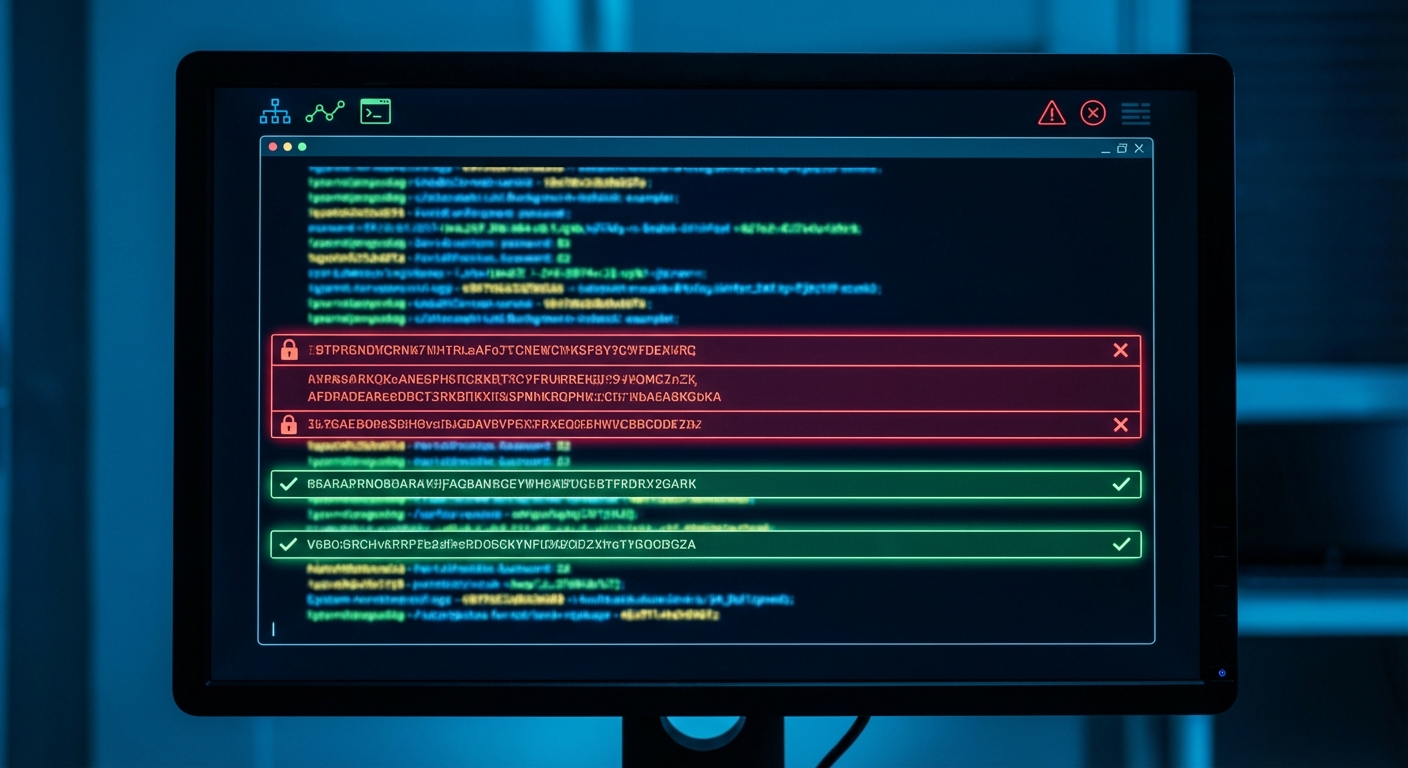
When something does trigger, you’ll get a concise Telegram message like:
🚨 4 failed login attempts in the last 1h
  - SSH failures: 3
  - Auth failures: 1
Or:
🔴 CRITICAL: Mac disk at 91% (18Gi free)
  Action needed NOW - system may become unstable.
  Top space consumers:
    45G  ~/Library/Caches
    12G  ~/Library/Application Support
Or:
🔍 Config Audit - 2 change(s) detected:
🔧 openclaw.json has changed since last baseline!
🌐 New listening ports detected:
  + node *:3000
Each alert gives you enough context to understand the problem and take action without needing to SSH into the machine and investigate.
Responding to Alerts
Knowing something is wrong is only useful if you know what to do about it. Here’s a quick reference for the most common alert scenarios:
SSH/Login Alerts
- Multiple SSH failures from unknown IPs: If Remote Login is enabled and you don’t need it, disable it immediately in System Settings > General > Sharing > Remote Login. If you do need SSH, consider restricting it to specific IPs.
- Auth failures from sudo or screensaver: If you didn’t make these attempts, check who has physical access to your machine. Change your login password as a precaution.
- “SSH remote login is ENABLED” warning: Many users enable this during initial setup and forget to turn it off. Unless you actively use SSH access, disable it.
Disk Space Alerts
- Warning (85%): Not urgent, but start cleaning up. Run
brew cleanup, empty the Trash, and check ~/Downloads for files you no longer need. - Critical (90%): Act now. The alert shows your top space consumers. Common culprits: Xcode caches, Homebrew old versions, and Docker images if you use them.
- Workspace bloat: Run
du -sh ~/clawd/*/to find what’s taking space. Usually it’s accidentalnode_modulesor build artifacts that belong in /tmp instead.
Config Drift Alerts
- openclaw.json changed: If you made the change intentionally, no action needed – the baseline will update automatically. If you didn’t, review the diff and restore from backup if necessary.
- New listening port: Check what process opened it with
lsof -nP -iTCP:PORT. If it’s a new service you installed, fine. If you can’t explain it, investigate further. - Secret files changed: Verify the changes were intentional. If a credential file was modified and you didn’t do it, rotate that credential immediately.
- Firewall disabled: Re-enable it: System Settings > Network > Firewall. macOS updates sometimes reset this.
Why This Matters More Than You Think
The numbers from real security research paint a clear picture. Cisco Talos documented large-scale, global brute-force campaigns targeting SSH and VPN services through 2024 and 2025. These campaigns are automated, persistent, and indiscriminate – they don’t care if you’re a corporation or a home user.
Configuration drift is even sneakier. As Broadcom’s research notes, the “hidden, unpredictable nature of configuration drift makes it a complex issue to address.” Without active monitoring, drift accumulates silently until something breaks or someone exploits it.
Spend 10-15 minutes now, get continuous visibility into the three most common ways a personal AI setup can quietly go wrong. We think that’s a trade-off worth making.
Extending the System
Once you have the pattern working – bash script, exit code for status, OpenClaw cron for scheduling, Telegram for delivery – you can add more checks easily. Some ideas we’re considering for future alerts:
- SSL certificate expiry – alert 14 days before any cert expires
- OpenClaw process health – detect if the gateway daemon stopped responding
- Backup verification – confirm Time Machine or other backups ran successfully
The point isn’t to build an enterprise monitoring stack. It’s to have enough visibility that you catch problems before they become emergencies. Three scripts, three crons, and you go from running blind to running informed.
If you want to customize your OpenClaw configuration for better security practices overall, our AGENTS.md configuration guide covers how to set up safety rules, file access boundaries, and operational guardrails. And for the full picture of what OpenClaw can automate beyond security, check out our list of the best OpenClaw automations.
Need Help Setting This Up?
If configuring bash scripts and cron jobs isn’t your idea of a good time, our setup service includes security monitoring as part of the package. We install the scripts, configure the crons, test the alerts, and make sure everything is working before handing it off. You get the monitoring without the terminal work.
Ready to stop running blind?
We’ll set up security alerts, cron jobs, Telegram routing, and your full OpenClaw configuration.
Frequently Asked Questions
Do these security alerts work on Linux as well as macOS?
The disk space and config audit scripts work on both macOS and Linux with minor adjustments. The SSH failure detection script uses macOS’s unified log (log show), which you’d need to replace with /var/log/auth.log parsing on Linux. The core logic and alert pattern are the same – just the log source changes.
How often should I run the OpenClaw security crons?
We run login detection every hour, disk space every 6 hours, and the config audit once per day. Hourly login checks catch brute-force attempts quickly without generating noise. Daily config audits are enough because drift is slow-moving by nature. Adjust based on how exposed your machine is – a server with a public IP might warrant more frequent checks than a home network setup behind a router.
Will these alerts slow down my OpenClaw assistant?
No. Each script runs in an isolated session using OpenClaw’s cron system, so it doesn’t interrupt your main AI session. The scripts themselves take seconds to execute – they’re checking logs and comparing file hashes, not running heavy processes. The disk space check is the heaviest at a few seconds for the du commands, and even that is negligible.
What happens if I get a false positive alert?
The SSH threshold defaults to 3 failures per hour, which filters out most false positives from mistyped passwords. For the config audit, the first run establishes a new baseline so you won’t get alerts for existing state – only for changes going forward. If a specific check generates noise (like the listening ports check after a software update), run the script manually once to reset its baseline.
Can I send alerts to Discord or Slack instead of Telegram?
Yes. OpenClaw crons route output through whatever channels you have connected. If you’ve connected Discord or another messaging platform, you can configure the cron to deliver alerts there instead. The scripts output plain text that works on any platform.