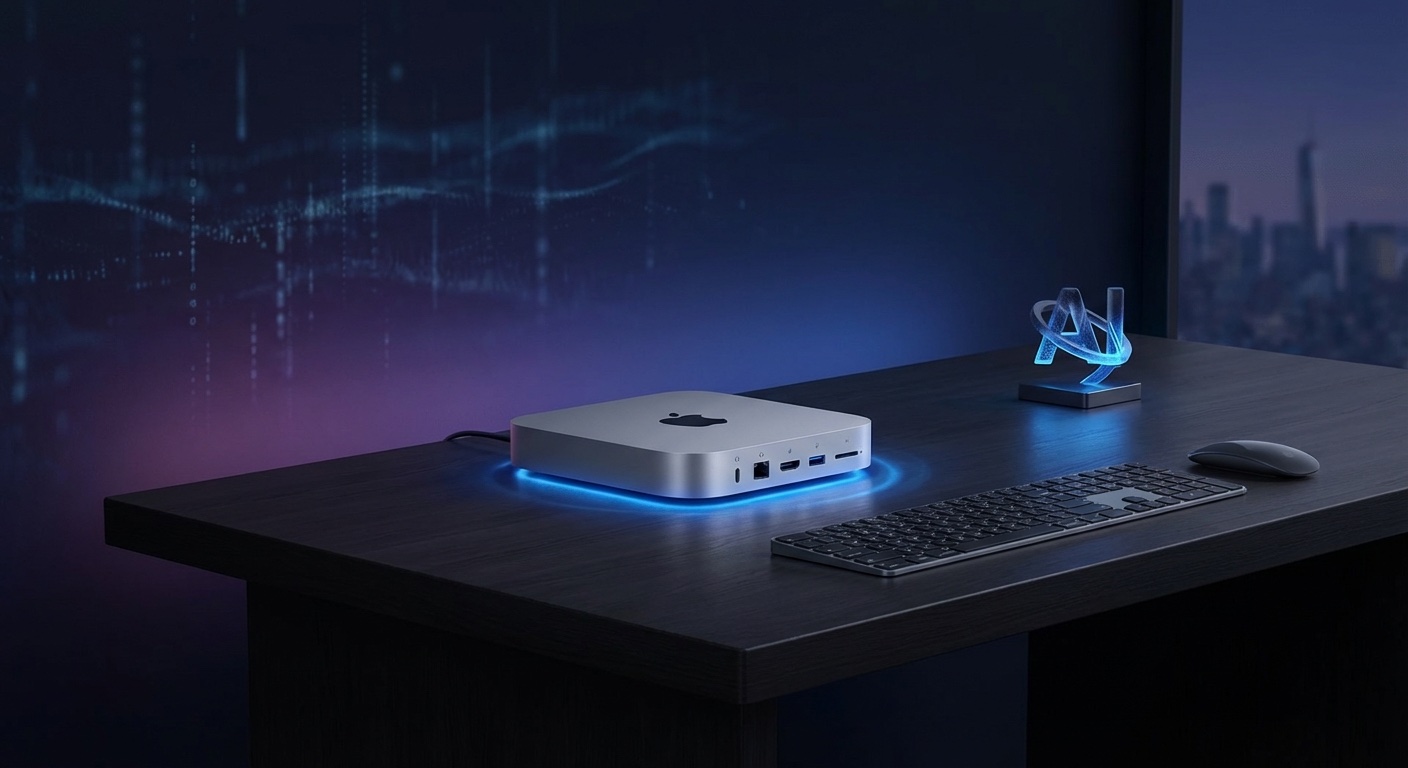
There’s a reason Mac Minis keep selling out at Apple stores. People are buying them specifically to run OpenClaw (Clawdbot) as a dedicated AI assistant. I was one of the first to do this, and after running Jarvis on a Mac Mini 24/7 for months, I can tell you exactly what works, what breaks, and what to avoid.
This guide covers which Mac Mini to buy, how to configure it for always-on operation, and the specific settings that keep everything running smoothly without babysitting. If you haven’t installed OpenClaw yet, start with the complete setup guide first, then come back here for the hardware optimization.
Why a Mac Mini for OpenClaw (and not something else)
I’ve tried running OpenClaw on my MacBook, a Linux VPS, and a Mac Mini. Here’s why the Mini won and it wasn’t even close.
vs. a MacBook: Every time I closed the lid, OpenClaw went offline. I tried caffeine apps and clamshell mode, but it was unreliable. Missing morning briefings because my laptop went to sleep gets old fast. I also couldn’t take my laptop to a coffee shop without killing my assistant. The whole “always available” promise falls apart if your hardware isn’t always on.
vs. a Linux VPS: It works, and I know people who run OpenClaw this way happily. But latency is higher (your bot has to talk to the cloud, then to Anthropic’s API, then back), you lose macOS-specific features like Apple Notes, Shortcuts, and native app integration, and you’re paying $15-30/month for a server that’s less capable than a $499 Mac Mini. For a personal assistant that integrates with your Apple ecosystem, local hardware wins.
vs. Raspberry Pi: The Pi 5 can technically run OpenClaw, but it’s painfully slow for anything beyond simple conversations. Node.js performance on ARM Linux is noticeably worse than on Apple Silicon, and you lose all macOS integrations. I tried this for a week and gave up.
The Mac Mini M4 hits the sweet spot: silent (I genuinely can’t hear mine from two feet away), tiny (fits behind a monitor or in a desk drawer), uses barely any power, and has more than enough performance for OpenClaw plus whatever else you throw at it.
Don’t want to do this yourself?
Skip the trial and error. Get a fully configured OpenClaw assistant set up by someone who’s done it hundreds of times.
Skip the Setup Headaches
Our team handles your entire OpenClaw setup – hardware, integrations, automations – so you can focus on running your business. Most clients are fully operational in 48 hours.
Which Mac Mini to buy for OpenClaw
For most people: Mac Mini M4, 16GB RAM ($499)
This is what I recommend for 90% of OpenClaw users. 16GB RAM is plenty for a single bot instance with a dozen skills running. The M4 chip handles everything OpenClaw needs without the fan even spinning up most of the time. This is what I run daily.
For power users: Mac Mini M4 Pro, 24GB RAM ($1,399)
If you plan to run multiple bot instances, heavy local AI models alongside OpenClaw, or use the Mac Mini for other compute-heavy tasks, the Pro is worth considering. The extra RAM helps when you have many concurrent sessions. But honestly, I’d try the base M4 first and upgrade only if you actually hit its limits.
Don’t bother with: M4 Pro 48GB or M4 Max
Overkill for OpenClaw. The bot itself uses minimal local resources since the heavy computation happens on Anthropic’s servers. Your money is better spent on Claude API credits than on RAM you won’t use.
Used Mac Minis: a great budget option
A used M2 Mac Mini (16GB) for $300-400 runs OpenClaw perfectly. The M2 is still a very capable chip. If budget is a concern, this is a solid path. Check Apple’s refurbished store for warranty-backed options, or eBay for lower prices. Just make sure it’s running macOS Sonoma or newer.
For a full cost breakdown including API costs and electricity, see my complete pricing guide.
Physical setup: where to put it
Location matters more than you’d think for a 24/7 device. Your Mac Mini needs:
- Reliable power: Use a UPS or at minimum a good surge protector if you have power fluctuations. A UPS gives you 10-15 minutes of battery backup, enough for the Mac Mini to ride out brief outages. I use a $50 CyberPower unit.
- Ethernet connection: Wi-Fi works but wired is more reliable for 24/7 operation. You don’t want your assistant going offline because your router temporarily dropped Wi-Fi during a firmware update.
- Cool environment: The Mac Mini runs warm when active. Don’t stuff it in a sealed cabinet or stack things on top of it. A desk, shelf, or well-ventilated closet all work fine.
- Accessibility: You’ll rarely need physical access, but “rarely” isn’t “never.” Keep it somewhere you can reach if you need to plug in a keyboard during a macOS update gone wrong.
My setup: Mac Mini on my desk behind my monitor, connected via Ethernet to my router, plugged into a surge protector. I access it remotely via Screen Sharing when I need the GUI and through SSH for everything else. Day-to-day, I just talk to it through Telegram.
macOS settings for 24/7 operation
Fresh out of the box, macOS assumes you’re a laptop user who turns their computer on and off. You need to change several settings for always-on operation.
Prevent sleep (most important)
System Settings > Energy > Turn display off after: Never (or set a short time – the Mac stays awake regardless of display state)
More importantly, disable sleep entirely from the terminal:
sudo pmset -a sleep 0
sudo pmset -a disksleep 0
sudo pmset -a displaysleep 0
Verify with:
pmset -gYou should see sleep 0 in the output. If sleep is anything other than 0, your Mac Mini will eventually go to sleep and your bot goes offline with it.
Automatic restart after power failure
System Settings > Energy > “Start up automatically after a power failure”: ON
This is the second most important setting. Without it, a brief power outage means your bot goes offline until you physically walk over and press the power button. With it enabled, the Mac Mini boots itself back up as soon as power returns.
Auto-login
System Settings > Users & Groups > Automatic login: select your account
Combined with the power failure restart, this means your Mac Mini recovers from power outages completely unattended. Power goes out, power comes back, Mac boots, logs in, daemon starts, bot is back online. No human needed.
Disable automatic macOS updates
You don’t want macOS rebooting for updates at 3 AM while your bot is in the middle of an overnight work session.
System Settings > General > Software Update > Automatic Updates > Turn off “Install macOS updates”
Check for updates manually once a week during a time you can supervise a restart. I do mine Sunday mornings.
Enable remote access
System Settings > General > Sharing > Screen Sharing: ON
System Settings > General > Sharing > Remote Login (SSH): ON
This lets you manage the Mac Mini from any other device without needing a monitor plugged in. Screen Sharing gives you the full GUI. SSH gives you terminal access. Between these two, you’ll never need to plug in a monitor for normal operations.
Skip the learning curve
Why spend weeks figuring it out when you can have a dialed-in setup in one session?
OpenClaw configuration for always-on use
Skip the Setup Headaches
Our team handles your entire OpenClaw setup – hardware, integrations, automations – so you can focus on running your business. Most clients are fully operational in 48 hours.
Install as a daemon
When you ran the onboarding wizard with --install-daemon, OpenClaw should already be configured to start automatically on boot. Verify:
clawdbot gateway statusIf it’s not running as a daemon, set it up:
clawdbot gateway install-daemonThis creates a launchd service that starts OpenClaw automatically when your Mac boots up. Combined with auto-login and power failure restart, you get a fully self-healing setup.
Schedule a daily gateway restart
Even the most stable software benefits from a fresh start. I restart my OpenClaw gateway at 4 AM every day via a system cron job. Here’s why: after running for several days continuously, I noticed occasional slowdowns and memory creep. A daily restart at 4 AM (when I’m definitely asleep) keeps everything snappy and costs nothing.
You can set this up by creating a simple launchd plist or asking your bot to create a cron job: “Create a cron job that restarts the gateway at 4am every day.” For more on what you can automate with cron, see my cron job automation guide.
Network configuration
If your Mac Mini is behind a router (it probably is), OpenClaw’s outbound connections to Anthropic’s API and Telegram’s API work without any port forwarding. You don’t need to touch your router settings for basic operation.
If you want to access the OpenClaw web interface or SSH into your Mac Mini remotely (from outside your home network), you have a few options:
- Tailscale (recommended): Free for personal use. Install it on both devices, and they can see each other regardless of network. Zero configuration, no port forwarding. I use this daily.
- VPN: If you already run a home VPN, route through that.
- Port forwarding + Dynamic DNS: Works but more complex to set up and maintain. Skip this unless you have a specific reason.
Monitoring your bot’s health
Set up a simple health check so you know when something goes wrong before you notice it yourself. I have a cron job that checks gateway status every 15 minutes and pings me on Telegram if it’s down. You can also check manually:
clawdbot gateway statusFor a more hands-off approach, set up your bot to send you a daily “I’m alive” message as part of your morning briefing. If you don’t get your morning briefing, something is wrong.
What my 24/7 setup actually looks like in practice
For reference, here’s my actual resource usage on a Mac Mini M4 (16GB):
- CPU usage (idle): 1-3%
- CPU usage (active conversation): 5-15%
- RAM usage (OpenClaw + macOS): 4-6 GB of 16 GB
- Disk usage (workspace + logs): ~2 GB after 6 months
- Network (daily): 50-200 MB
- Power consumption: 5-15W idle, 30-40W peak
The Mac Mini barely notices OpenClaw is running. I could (and sometimes do) use it as a regular desktop computer simultaneously – browsing, light development work, running other services. With 16GB RAM and the M4 chip, there’s plenty of headroom.
Troubleshooting common 24/7 issues
“Bot stops responding after a few days”: Usually a Node.js memory leak or stale WebSocket connection. The daily 4 AM restart I mentioned above solves this in 90% of cases. If it happens more frequently, check your installed skills – a buggy skill can cause memory issues.
“Slow responses”: Check your internet connection first (run a speed test). Then check if another process is hogging CPU or RAM with Activity Monitor. If both are fine, the slowness is probably on Anthropic’s end – their API has variable latency, especially during peak hours.
“Bot didn’t survive a reboot”: Three things to check in order: Is the daemon installed? (clawdbot gateway status) Is auto-login enabled? Did macOS complete the login before the daemon tried to start? Sometimes a slow login plus a fast daemon launch creates a race condition. Adding a 30-second delay to the daemon start fixes this.
“API errors after running fine for weeks”: Check console.anthropic.com for your usage and any outages. Anthropic has occasional rate limits and service disruptions. Also check if your API credits ran out – an empty balance looks like an API error.
“Mac Mini overheating”: I’ve never had this happen with OpenClaw specifically, but if you’re running other heavy workloads simultaneously, make sure the Mac Mini has adequate ventilation. If the fans are running constantly, something else besides OpenClaw is probably the culprit.
“Wi-Fi keeps dropping”: Switch to Ethernet. Seriously. Wi-Fi on Mac Minis running 24/7 can have intermittent drops, especially if your router is far away or you have a lot of devices on the network. A $10 Ethernet cable solves this permanently.
Advanced: running multiple bots on one Mac Mini
You can run multiple OpenClaw instances on a single Mac Mini with separate workspaces and gateway configs. Each instance gets its own personality, memory, and messaging channels. I know people running a personal assistant and a business bot side by side on the same base M4.
The main constraint is RAM. Each OpenClaw instance uses 500MB-1GB of RAM. With 16GB, you can comfortably run 2-3 instances with plenty of room for macOS. If you need more, the 24GB M4 Pro gives you breathing room for 4-5 instances.
Pro tips from months of 24/7 operation
Use Tailscale for remote access. I can SSH into my Mac Mini and check on Jarvis from anywhere – my phone, a hotel computer, whatever. It took 5 minutes to set up and it’s free for personal use. No port forwarding, no dynamic DNS, just works.
Keep a USB keyboard and mouse nearby. Screen Sharing is great 99% of the time, but I’ve needed physical access twice when macOS got into a weird state after an update. Having peripherals within reach saves you from scrambling to find a keyboard at midnight.
Set up Time Machine backups. Plug in an external drive and enable Time Machine. If something goes catastrophically wrong, you can restore your entire OpenClaw setup in minutes. Your AGENTS.md configuration and memory files become irreplaceable after months of use.
Label your power cable. This sounds silly, but if your Mac Mini is in a shared space, someone will eventually unplug it thinking it’s not in use. A small label that says “DO NOT UNPLUG – AI ASSISTANT” prevents this. Ask me how I know.
FAQ
Can I run OpenClaw on a Mac Mini M1?
Yes. The M1 Mac Mini runs OpenClaw without issues. Performance is slightly lower than M4 but perfectly adequate for a single bot instance.
How much electricity does a Mac Mini use running 24/7?
About $3-7 per month depending on your local electricity rates. At 10 watts average and 24/7 operation, that’s roughly 7 kWh per month.
Do I need a monitor plugged in?
No. Once you enable Screen Sharing and SSH, you can manage everything remotely. The Mac Mini runs headless without issues. Some people use an HDMI dummy plug ($8 on Amazon) to make Screen Sharing resolution look better, but it’s optional.
Can I run other things on the same Mac Mini?
Absolutely. OpenClaw uses minimal resources. You can run it alongside a Plex server, Home Assistant, web development tools, or anything else. With 10+ GB of free RAM on a 16GB model, there’s plenty of room.
What happens during a power outage?
Without a UPS: Mac Mini shuts off, then restarts and resumes when power returns (if you’ve configured auto-restart and auto-login). With a UPS: Mac Mini stays on through brief outages. I’ve had two multi-hour outages in 6 months. The Mac Mini recovered on its own both times within a minute of power returning.
Skip the Setup Headaches
Our team handles your entire OpenClaw setup – hardware, integrations, automations – so you can focus on running your business. Most clients are fully operational in 48 hours.
How loud is a Mac Mini running 24/7?
Essentially silent for OpenClaw workloads. The fan rarely spins up because OpenClaw uses so little CPU. I keep mine on my desk and can’t hear it over ambient room noise. It’s quieter than a Raspberry Pi with a cooling fan.
Ready to get started?
Custom personality, skills, automations, and messaging channels – all configured in a single session.
Comments
2 responses to “OpenClaw on Mac Mini: The Ultimate 24/7 AI Assistant Setup”
[…] been running OpenClaw on a dedicated machine as a 24/7 assistant for a while now, and cron jobs are the feature that turned it from “cool AI chatbot” […]
[…] requires a dedicated machine (I use a Mac Mini), command-line setup, API keys from your AI provider, and configuration of your messaging channels. […]