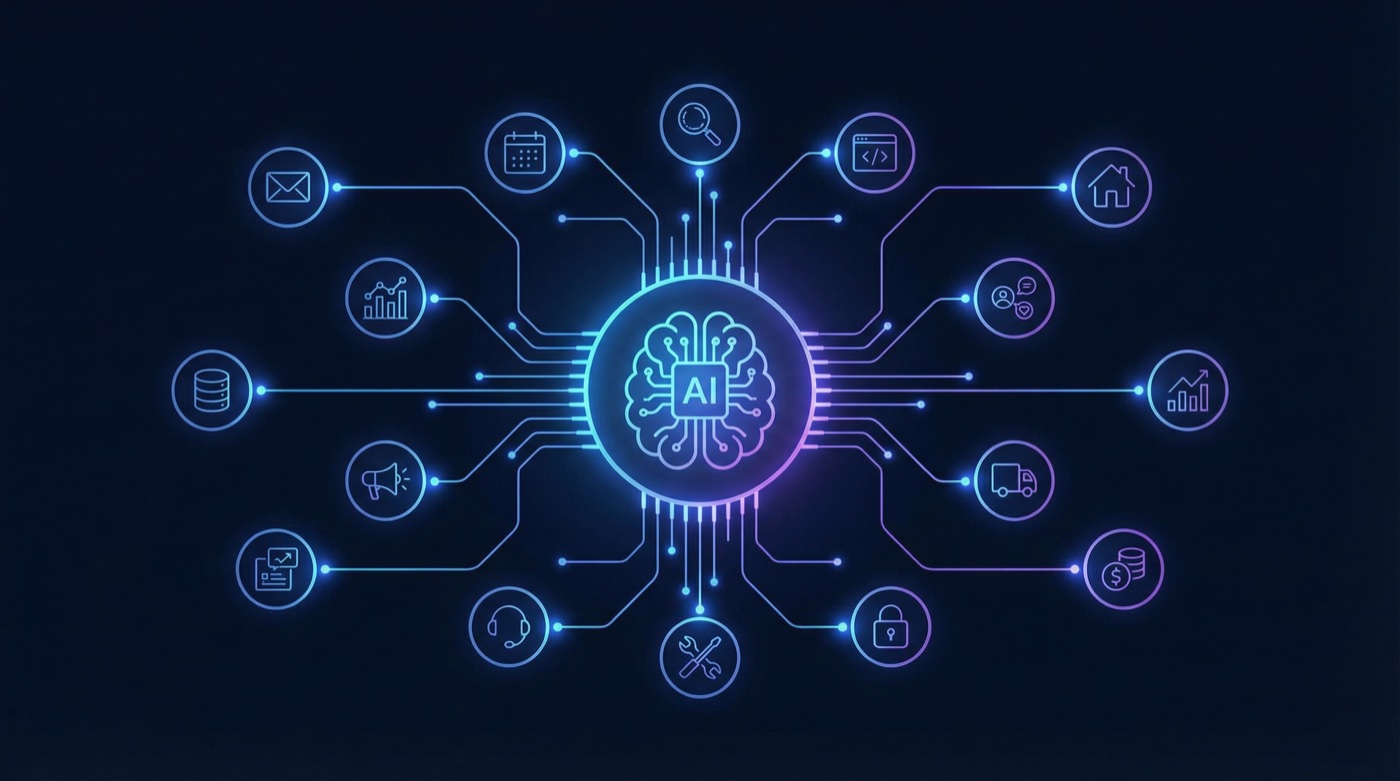
Skills are what turn OpenClaw from a smart chatbot into an actual assistant that does things. After testing dozens of them over six months, I’ve narrowed this down to the 10 that genuinely changed how I work – plus 5 honorable mentions that are worth knowing about.
Most skills I tried were either too niche, poorly maintained, or solved problems I didn’t actually have. The ones below earned their spot by showing up in my workflow every single day. (If you’re still weighing whether OpenClaw is worth it, read our honest review with real costs.) If you haven’t set up OpenClaw yet, start with the complete setup guide first.
Quick Comparison Table
| Rank | Skill | Category | Setup Time | API Key? |
|---|---|---|---|---|
| 1 | Google Workspace (gog) | Productivity | 15 min | Yes (OAuth) |
| 2 | Summarize | Productivity | 2 min | Yes (LLM key) |
| 3 | Apple Reminders | Utility | 2 min | No |
| 4 | Notion | Productivity | 10 min | Yes (API key) |
| 5 | WordPress (Pinch-to-Post) | Publishing | 10 min | Yes (app password) |
| 6 | GitHub | Development | 2 min | Yes (gh auth) |
| 7 | Yahoo Finance | Finance | 0 min | No |
| 8 | Weather | Utility | 0 min | No |
| 9 | Gemini | AI/Research | 2 min | Yes (Gemini key) |
| 10 | Coding Agent | Development | 0 min | No |
Skip the Setup Headaches
Our team handles your entire OpenClaw setup – hardware, integrations, automations – so you can focus on running your business. Most clients are fully operational in 48 hours.
How Skills Work (30-Second Version)
Skills are folders with a SKILL.md file that teaches your agent how to use a tool. Install from ClawHub:
clawhub install weather
clawhub update --all
That’s it. Most work immediately. Some need an API key – your bot tells you what’s missing.
My Daily Workflow: How 5 Skills Work Together
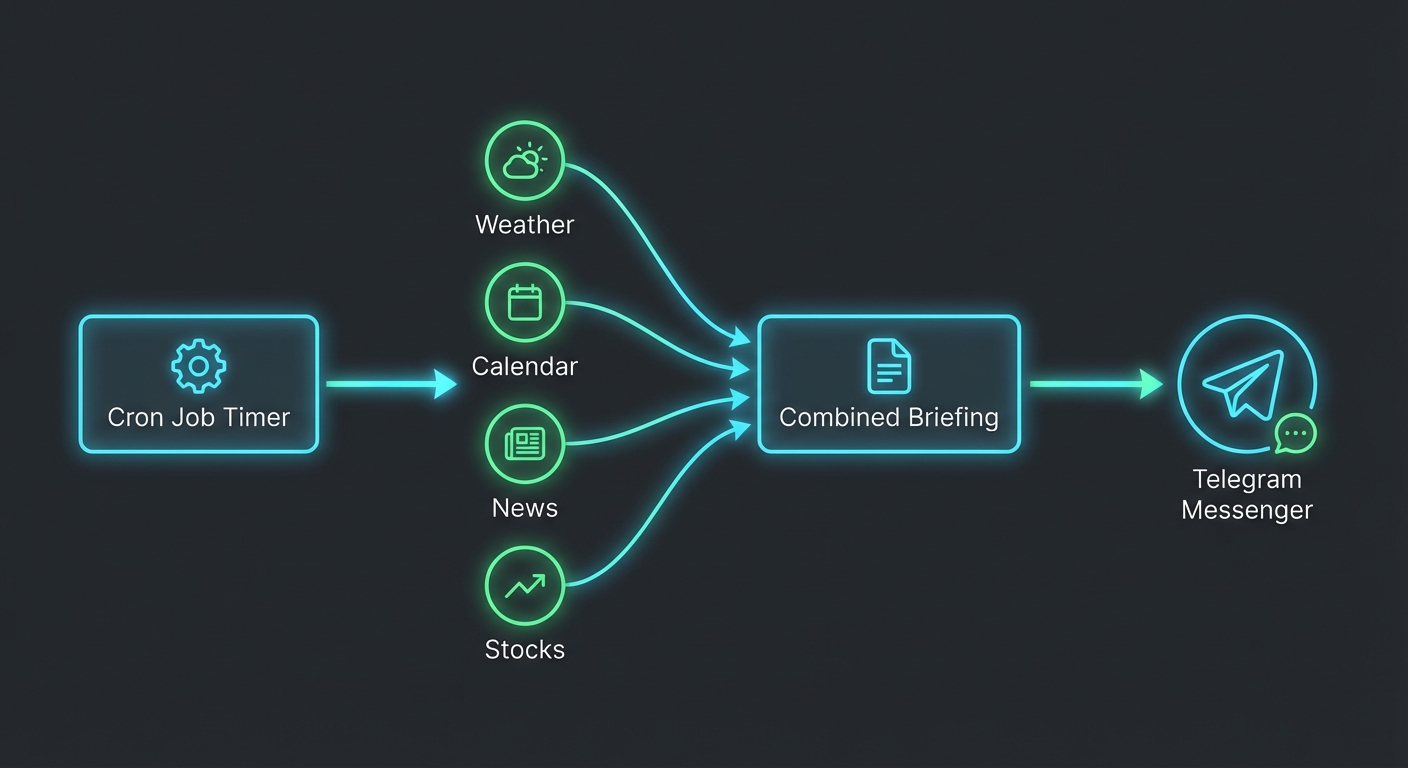
Before I break down each skill individually, here’s what actually matters: how they combine. A single skill is useful. Five skills working together through a cron job is what makes OpenClaw feel like a real assistant.
Every morning at 6:30 AM, my bot sends me a Telegram message that looks something like this:
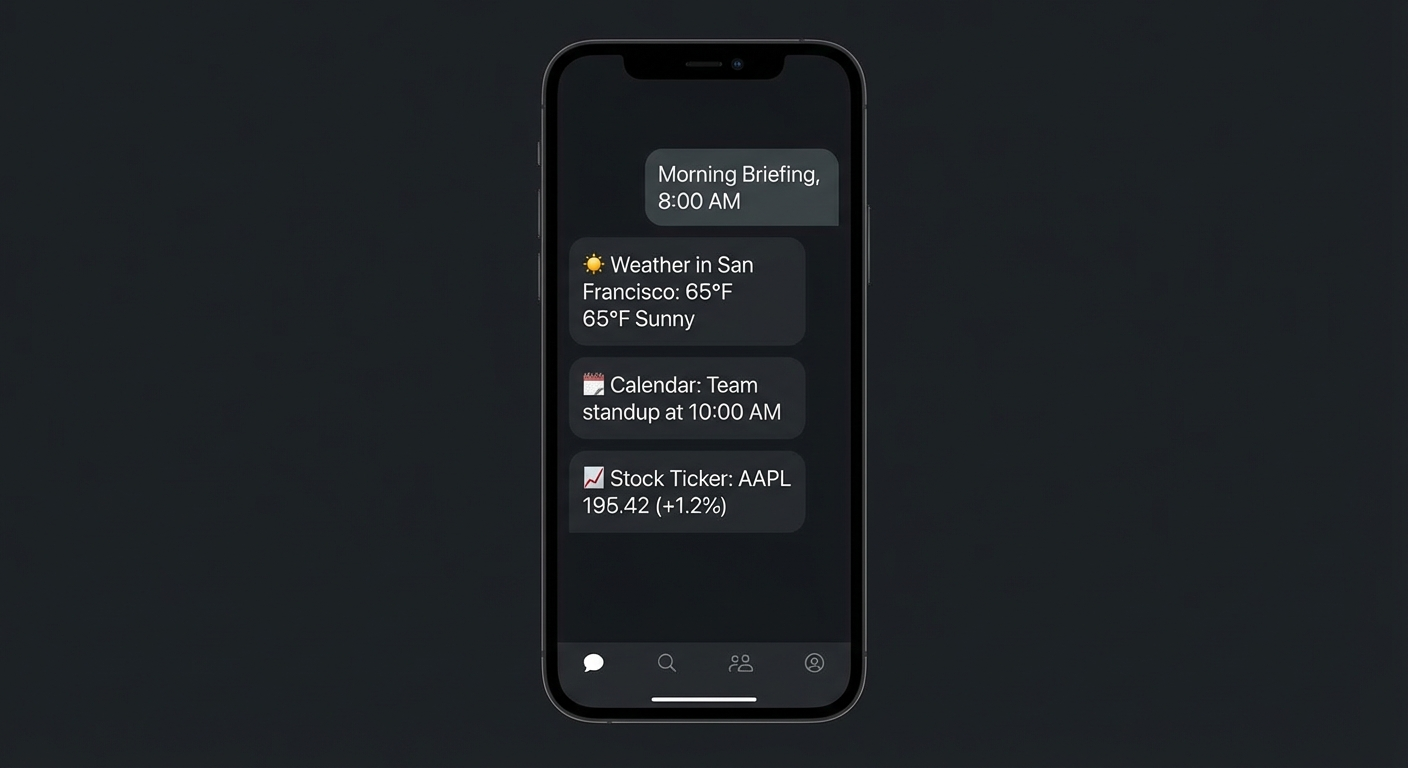
Good morning. Here's your day:

Weather: 45F, partly cloudy. No rain expected.

Calendar: 3 meetings today
- 9:00 AM: Standup with dev team
- 11:30 AM: Client call (Sarah from Acme)
- 3:00 PM: Dentist appointment

Priority emails (overnight):
- Stripe: Payment failed for customer #4821
- GitHub: CI failed on main branch (2 runs)
- Client: "Can we move Thursday's meeting?"

Portfolio: AAPL +1.2%, NVDA -0.8%, BTC $94,200 (+2.1%)

3 overdue reminders from yesterday.
That single morning message uses Weather + Google Workspace + Yahoo Finance + Apple Reminders all firing together. I didn’t open a single app, and I already know what kind of day I’m walking into. Before OpenClaw, getting this overview meant checking 4 different apps over 15 minutes. Now it’s just… there when I wake up.
Here’s what the underlying workflow looks like:
Throughout the day, Summarize jumps in constantly. Someone sends me a 40-minute podcast link? Summarized in 20 seconds. A client emails a 15-page PDF? Key points in a paragraph. That one skill alone probably saves me 5+ hours a week.
This is the real power of skills – not any single one, but the compound effect of having them all available to an agent that knows when to use each one.
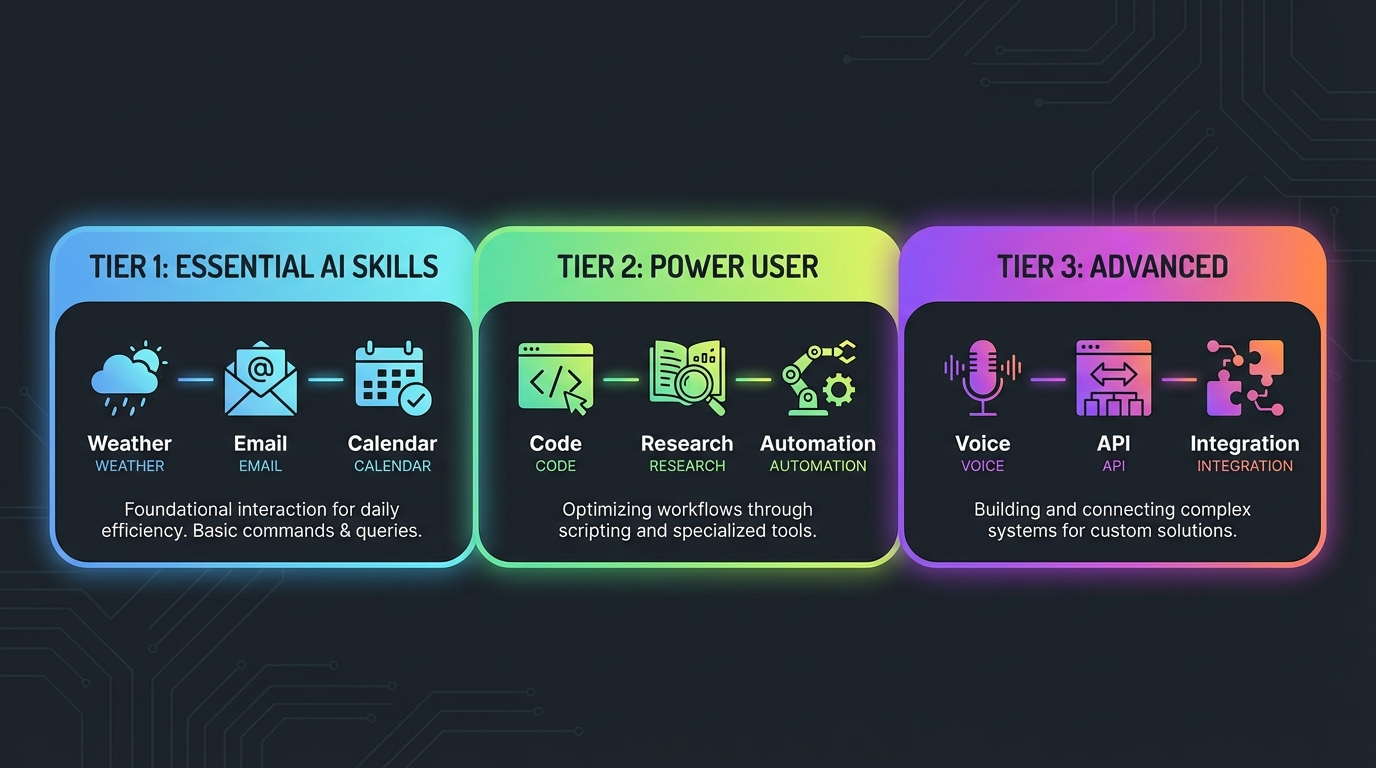
The Top 10 Skills (Ranked by Daily Impact)
1. Google Workspace (gog) – The One Skill to Rule Them All
If you install one skill and nothing else, make it this one. Google Workspace connects your bot to Gmail, Calendar, Drive, Contacts, Sheets, and Docs through a single CLI called gog.
This skill single-handedly justified the entire OpenClaw setup for me. Before it, I was constantly context-switching between Telegram, Gmail, and Calendar. Now I just say “what’s on my calendar today?” or “send Sarah a follow-up email about the project” and it happens. See our email monitoring tutorial for the full setup.
Install:
brew install steipete/tap/gogcli
gog auth credentials /path/to/client_secret.json
gog auth add you@gmail.com --services gmail,calendar,drive,contacts,docs,sheets
What you actually say to your bot:
- “Hey Jarvis, what’s on my calendar today?”
- “Send an email to Sarah about the project deadline”
- “Find the Q4 revenue spreadsheet in my Drive”
- “What emails came in from Stripe this week?”
Setup note: The OAuth configuration takes about 15 minutes and it’s the most annoying 15 minutes you’ll spend with OpenClaw. But the payoff is enormous. Follow the gog docs at gogcli.sh for step-by-step setup.
2. Summarize – The Biggest Time Saver, Period
This skill changed how I consume information. Feed it a URL, PDF, YouTube video, or audio file and get a structured summary back. I use it multiple times every single day and it’s probably saved me hundreds of hours total.
Someone sends me a 30-minute podcast? Summarized in 20 seconds. A long blog post? Key points in a paragraph. A YouTube video I don’t have time for? Transcript and summary without watching a frame. The YouTube transcript extraction alone makes this worth installing.
Install:
brew install steipete/tap/summarizeReal examples – just tell your bot:
- “Summarize this article for me: https://example.com/long-article”
- “What are the key points of this YouTube video? https://youtu.be/example”
- “Give me a quick summary of this PDF” (then attach the file)
I honestly can’t imagine going back to consuming content the old way. When you can digest a 2-hour podcast in 30 seconds, you stop ignoring links people send you.
3. Apple Reminders – Deceptively Powerful
“Remind me to follow up with the client tomorrow at 2pm.” That’s it. That’s the pitch. It sounds simple, but natural language reminders delivered through your messaging channel – with zero app switching – is one of those things you don’t appreciate until you’ve used it for a week.
Since it uses the native Apple Reminders system, everything syncs across your iPhone, Mac, and iPad automatically. No separate database. No proprietary reminder system.
Install:
brew install steipete/tap/remindctlWhat you actually say:
- “Remind me to call the dentist tomorrow at 10am”
- “What reminders do I have this week?”
- “Show me my overdue tasks”
Note: macOS only. Requires Reminders permission on first run.
4. Notion – The Brain Extension
If Notion is where you organize your life, this skill makes it accessible from chat. I manage my task board, revenue tracker, and content calendar through my bot, and it’s dramatically faster than opening the Notion app and clicking through pages.
Setup:
- Create an integration at notion.so/my-integrations
- Copy the API key (starts with
ntn_) - Share target pages/databases with the integration
- Store the key in
~/.config/notion/api_key
What you actually say:
- “Add ‘write blog post’ to my task board”
- “What tasks are due this week?”
- “Update the revenue tracker with today’s numbers”
Fair warning: Notion’s API has quirks. You need to explicitly share each page/database with your integration. Expect some trial and error during setup. Once configured though, it’s excellent.
5. WordPress (Pinch-to-Post) – Content Creator’s Best Friend
I run multiple WordPress blogs and this skill lets me manage all of them from chat. Create posts, publish drafts, moderate comments, update SEO, manage WooCommerce products – all without touching the WordPress dashboard.
Here’s what sold me:
| Task | Manual (WP Admin) | With Pinch-to-Post |
|---|---|---|
| Create 10 posts | 15-20 minutes | 30 seconds |
| Update 50 product listings | 45 minutes | 1 minute |
| Moderate 100 comments | 20 minutes | 10 seconds |
If you run any WordPress site, this is a must-have. Pair it with our automated content pipeline tutorial for a complete research-to-publish workflow.
6. GitHub – Stay in the Loop Without Context-Switching
If you manage development projects, this skill keeps you aware of what’s happening across your repos without opening github.com. Check CI status, review PRs, scan open issues – all from chat.
brew install gh
gh auth login

# Check CI on a PR
gh pr checks 55 --repo owner/repo

# View failed logs
gh run view <run-id> --repo owner/repo --log-failed
I particularly love having my morning briefing include CI status. Knowing that the main branch is green (or not) before my first meeting is genuinely useful.
7. Yahoo Finance – Free Real-Time Market Data
No API key needed. Ask for a stock price and get it instantly. Run a full analysis with fundamentals and analyst ratings. I check my portfolio daily through this and it’s faster than opening any finance app.
Just ask your bot naturally:
- “Hey Jarvis, how is AAPL doing today?”
- “What are analyst ratings for Tesla?”
- “Show me Bitcoin’s price”
- “When are NVDA earnings?”
Uses yfinance under the hood. Requires Python 3.11+ and uv (both usually already present).
8. Weather – The “Aha Moment” Skill
This sounds trivial. It’s just weather. But it’s often the first skill people install and the moment OpenClaw “clicks.” When your bot tells you to bring a jacket before you ask, it stops feeling like a chatbot and starts feeling like an assistant.
curl -s "wttr.in/Denver?format=%l:+%c+%t+%h+%w"
# Output: Denver: partly cloudy +4C 35% wind 12km/h
Try it yourself – just say “Hey Jarvis, what’s the weather like today?” and watch it pull your local forecast in seconds. Free, no API key, works instantly. I include it in my morning briefing cron and never think about it. That’s the point – the best skills disappear into your workflow.
Skip the Setup Headaches
Our team handles your entire OpenClaw setup – hardware, integrations, automations – so you can focus on running your business. Most clients are fully operational in 48 hours.
9. Gemini – Your Second Brain for Research
This isn’t about replacing Claude. It’s about having another AI to consult, especially one with access to fresh Google Search results. When I need current information – recent news, latest product reviews, new regulations – Gemini fills that gap perfectly.
brew install gemini-cli
gemini --yolo "What are the latest changes to California tax law for 2026?"
I use it for research tasks almost daily. It’s like having a research assistant on standby.
10. Coding Agent – Delegate the Code
This bundled skill spins up a dedicated coding sub-agent for writing, debugging, and reviewing code. Instead of your main assistant juggling conversation and code at the same time, it delegates to a focused coding context.
I’m not a full-time developer, but I build automations and scripts constantly. Having a coding agent that can write a Python script, debug an error, or refactor messy code has been incredibly useful.
Works with any language. No setup required – it uses your main LLM.
Want This Done For You?
Skip the setup headaches. Get a fully configured OpenClaw assistant with all these skills installed and integrated in one session.
Honorable Mentions
These five didn’t make the top 10 but are worth installing if they match your workflow:
| Skill | What It Does | Best For | Why It Didn’t Make Top 10 |
|---|---|---|---|
| Spotify | “Play some focus music” from chat | Music lovers | Nice to have, not a productivity gain |
| iMessage (imsg) | Read/send texts from chat | Unified inbox fans | Privacy concerns, niche use case |
| Apple Notes | Quick capture and search | Apple ecosystem users | Overlaps with Reminders and Notion |
| Keyword Research | Find low-competition keywords | Bloggers and SEOs | Too niche for most users |
| Nano Banana Pro | Generate images from text | Content creators | Quality varies, not daily-driver material yet |
Spotify in particular is fun – saying “Jarvis, play some jazz” while deep in work is genuinely nice. It just doesn’t move the needle on productivity.
Skills I Tried and Dropped
Smart home integrations: Cool in theory, but I already have HomeKit and Siri for that. Adding another layer through OpenClaw just added complexity.
Local LLM skills: Running local models alongside OpenClaw sounds great, but Claude is better than anything I can run locally. Maybe this changes in the future.
Overly complex automation skills: Some skills tried to do too much and became impossible to debug. I prefer simple, single-purpose skills that do one thing well.
How to Install Skills
# Install from ClawHub
clawhub install weather
clawhub install summarize

# Browse available skills
clawhub list

# Update all installed skills
clawhub update --all
Skills can also be installed manually – download or clone the skill folder into ~/.openclaw/skills/ or your workspace’s skills/ directory.
Skills work best when your AGENTS.md personality file is well-configured and your messaging channels are connected. Running OpenClaw on a dedicated Mac Mini gives skills 24/7 access to run crons and process requests even while you sleep.
My Advice: Start Small
Don’t install 20 skills on day one hoping you’ll use them eventually. Each skill adds context to your bot’s system prompt, and too many unused skills can create confusion or slow things down.
Start with the top 3 (Google Workspace, Summarize, Reminders). Use them for a week. Then add skills based on what you actually need. You’ll know when you need a skill because you’ll find yourself thinking “I wish my bot could do X” – and there’s probably a skill for it.
FAQ
How many skills can I run at once?
No hard limit. I run about 15 actively. The practical limit is context length – too many skills make your bot’s system prompt very long, which can slightly affect response quality and token cost. See our full cost breakdown for what running OpenClaw actually costs.
Can I build my own skills?
Yes. A skill is just a folder with a SKILL.md file containing YAML frontmatter and instructions. The skill-creator tool (bundled with OpenClaw) helps with packaging.
Are skills free?
The skills themselves are free and open source. Some require paid external services (Google Workspace needs a Google account, Spotify needs Premium), but you’re not paying for the skill itself.
Do skills work on Linux and macOS?
Most work on both. Apple-specific skills (Reminders, Notes, iMessage) are macOS-only. Each skill’s SKILL.md lists supported platforms.
Skip the Setup Headaches
Our team handles your entire OpenClaw setup – hardware, integrations, automations – so you can focus on running your business. Most clients are fully operational in 48 hours.
Need Help Setting This Up?
Custom personality, skills, automations, and messaging channels – all configured and tested in one session.
Comments
3 responses to “15 Best OpenClaw Skills in 2026 (Tested & Ranked by Category)”
[…] humanizer pass, the content reads like someone actually sat down and wrote it. (This is one of the most useful OpenClaw skills you can […]
[…] and sometimes you’ll need to build or customize a skill yourself. The flip side is that OpenClaw skills can do things no ChatGPT plugin can, because they have full system access and can run […]
[…] you want to see what other skills pair well with scheduled automations, that’s a good next step. The combination of cron timing […]